Excel VBA Resources
- Introduction to VBA and Macros
- Basics of VBA Programming
- Handling of Sheets and Cells
- Conditions and Error Management
- Advanced Loops and Tables
- Creation of User Forms
- VBA Events
- Creating Automated Reports
- Custom Functions and Advanced Data Manipulation
- Advanced Management of UserForms
- File Management and Connection with Other Applications
- Code Optimization and Performance Management
Select a part of the course to start
1. Theory - Introduction to VBA and Macros
What is VBA?
- VBA (Visual Basic for Applications) : Integrated programming language in Microsoft Office, used to automate repetitive tasks in Excel.
- Role in Excel : Automate formatting, calculations, data management, or even create custom interfaces.
- Usage examples : Format tables, generate reports, validate data.
Macros
- Definition : A macro is a series of instructions recorded or written in VBA to execute tasks automatically.
- Recording : Excel can record user actions (e.g., formatting, data entry) to create a macro.
- Run : Macros can be launched via the Developer tab or keyboard shortcuts.
VBA Editor
- Access : Press Alt+F11 (on Windows) to open the VBA editor.
- Components :
- Project Explorer: List of workbooks and modules.
- Code window: Where macros are written or modified.
- Properties window: To handle object names (and some properties).
- Modules : Containers for VBA code (Insert > Module in editor).
Security
- Macros and security : Macros may contain malicious code, so enable macros only for trusted files.
- File format : Save workbooks with macros in . xlsm.
- Settings : Enable macros via File > Options > Privacy Dashboard > Macros settings > Enable all macros (for testing, with caution).
Good practices
- Always save a copy of the file before testing a macro.
- Name macros descriptively (e.g. FormaterTableau instead of Macro1).
- Test macros on dummy data to avoid data loss.
2. Demonstrations with an example
Save a Macro to Format a Book List
Steps:
- Open a new Excel workbook and save it as
Librairie.xlsm. - In the sheet "Sheet1", enter the following headers in A1:C1:
- A1: ID
- B1: Title
- C1: Price
- Enter fictitious data in A2:C3:
- A2:C2: 1, "The Little Prince", 12.99
- A3:C3: 2, "1984", 15.99
- Record a macro:
- Go to Developer > Save a macro.
- Name the macro
FormaterListeLivres. - Perform the following actions:
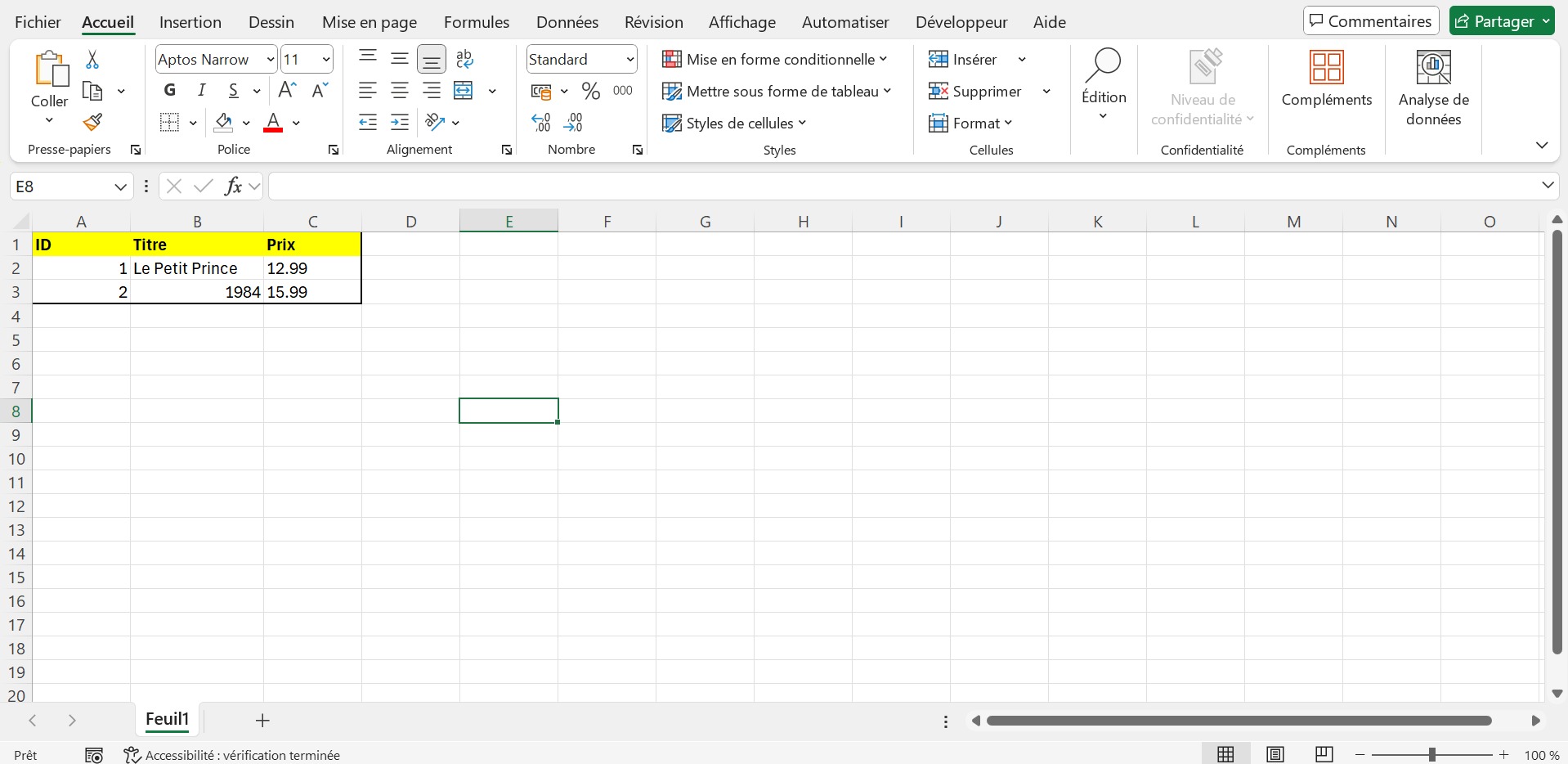
- Select A1:C3.
- Apply bold formatting to A1:C1.
- Add borders to the range A1:C3.
- Apply a yellow background color to A1:C1.
- Click Stop recording.
- Test the macro:
- Go to Developer > Macros > FormaterListeLivres > Run.
- Check that the formatting is applied.
???? Expected outcome:
1. Theory - Basics of VBA Programming
Variables
- Definition : A variable is a named memory space to store data (numbers, text, etc.).
- Declaration : Use
Dimto declare a variable (e.g.,Dim counter As Integer). - Common data types :
Integer: Integer number (e.g. 1, 10, -5).Double: Decimal number (e.g. 12.99).String: Text (for example, "The Little Prince").Boolean: True or False (e.g. True, False).
- Good practices :
- Always declare variables before use
- Use speaking names (e.g.,
prixLivreinstead ofx).
Loops
- Role : Allow repeated execution of instructions.
- Loop Types :
For... Next: Repeat a fixed number of times (e.g., to cycle through lines).Do... Loop: Repeat until a condition is met.
- Syntax :
' Instructions
Next i
Do While condition
' Instructions
Loop
' Instructions
Next i
Do While condition
' Instructions
Loop
Basic instructions
- MsgBox : Displays a dialog box with a message (e.g.,
MsgBox "Task completed"). - Range : Manipulates cells (e.g.,
Range("A1").Value = "Text"). - Cells : Accesses cells by their coordinates (e.g.,
Cells(1, 1).Valuefor A1). - Concatenation : Combine text and variables with
&(e.g.,"Book " & i).
Good practices
- Add
Explicitoption at the top of the module to force the declaration of variables. - Avoid using
. Selector. Activate(prioritizeRangeorCellsdirectly). - Test macros on dummy data to anticipate and avoid errors.
- Document the code with comments (
') to explain each step.
2. Demonstrations with examples
Example 1: Add Book Titles with a Loop
Steps:
- Create a new Excel workbook and save it as
Librairie_Leçon2.xlsm. - Open the VBA editor (Alt+F11), insert a new module (Insert > Module).
- Write and execute the following code:
Sub AjouterTitresLivres()
Dim i As Integer
Dim ws As Worksheet
Set ws = ThisWorkbook.Sheets("Feuil1")
' Add titles in A1:A5
For i = 1 To 5
&ws. Range("A" & i). Value = "Livre " & i
Next i
MsgBox "Titles added in A1:A5"
End Sub
Sub AjouterTitresLivres()
Dim i As Integer
Dim ws As Worksheet
Set ws = ThisWorkbook.Sheets("Feuil1")
' Add titles in A1:A5
For i = 1 To 5
ws.Range("A" & i). Value = "Livre " & i
Next i
MsgBox "Titles added in A1:A5"
End Sub
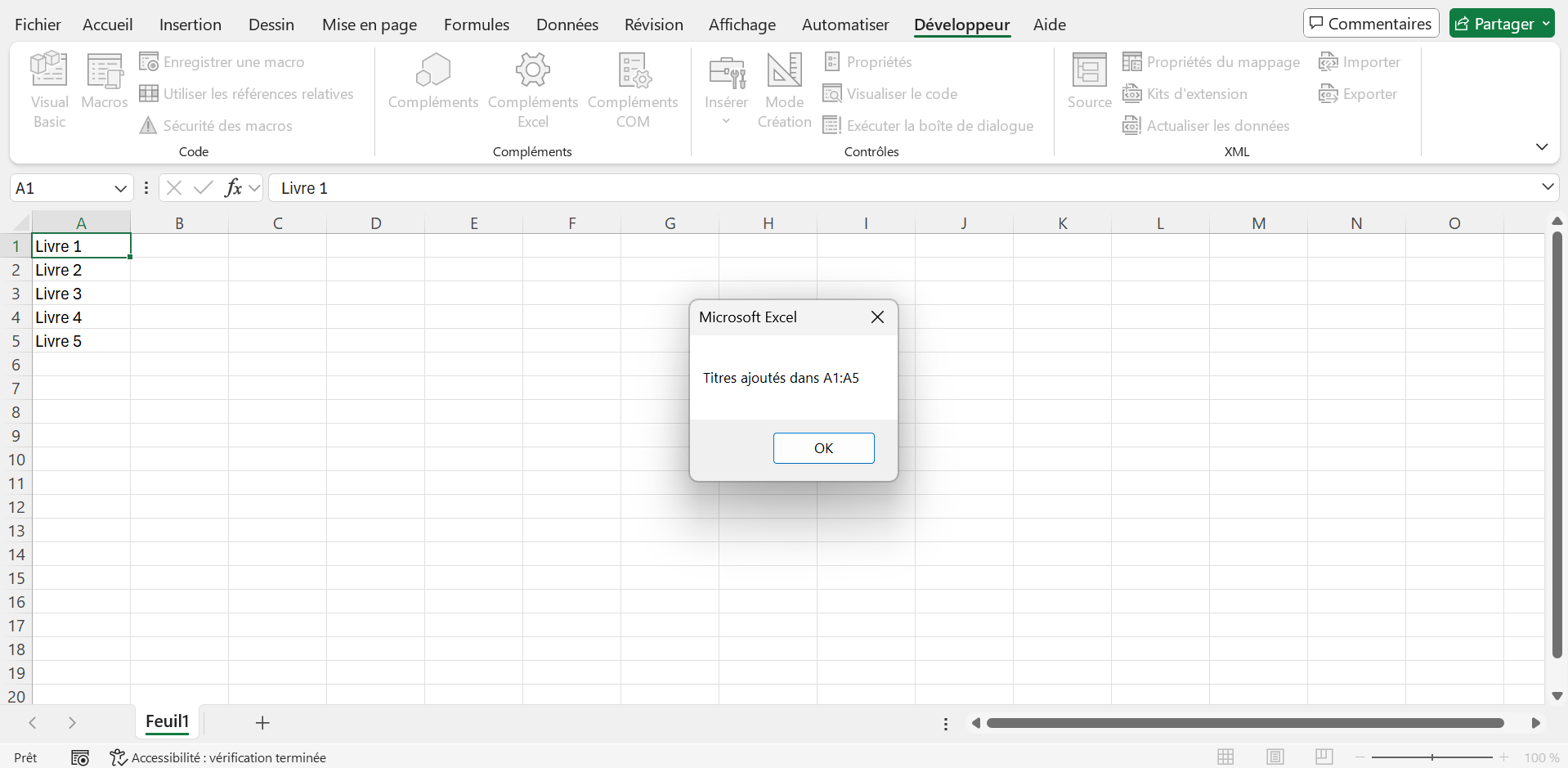
Check that:
- Cells A1:A5 contain "Book 1", "Book 2", ..., "Book 5".
- A message appears at the end.
???? Expected outcome:
Example 2: Add Prices with a Loop Do... Loop
Sub AjouterPrixLivres()
Dim i As Integer
Dim ws As Worksheet
Set ws = ThisWorkbook.Sheets("Feuil1")
i = 1
Do While i <= 5
. Range("B" & i). Value = 10 + i * 2.5 ' Price : 12.5, 15.0, 17.5, ...
i = i + 1
Loop
MsgBox "Prices added in B1:B5"
End Sub
Sub AjouterPrixLivres()
Dim i As Integer
Dim ws As Worksheet
Set ws = ThisWorkbook.Sheets("Feuil1")
i = 1
Do While i <= 5
ws.Range("B" & i). Value = 10 + i * 2.5 ' Price: 12.5, 15.0, 17.5, ...
i = i + 1
Loop
MsgBox "Prices added in B1:B5"
End Sub
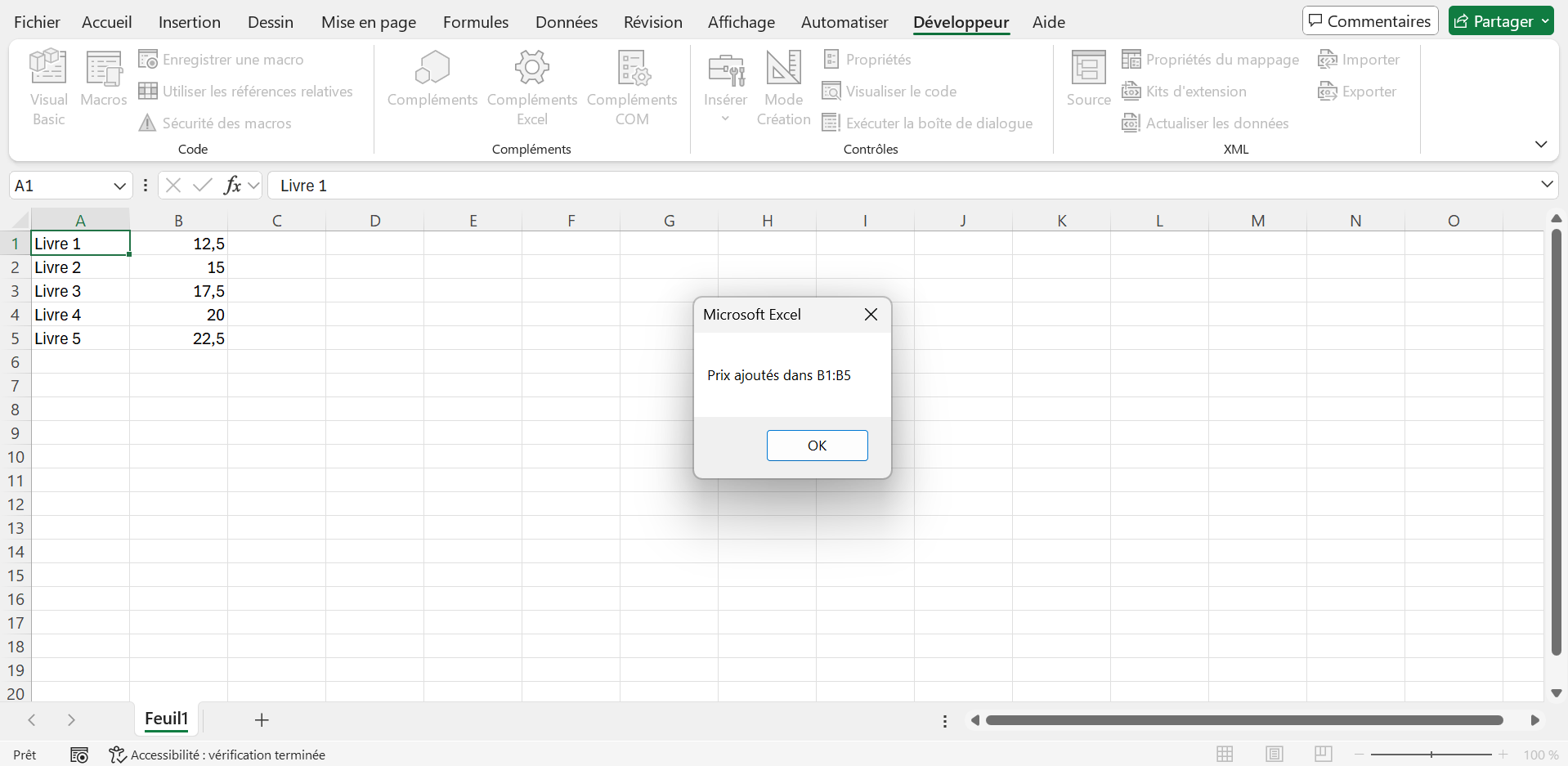
Check that:
- B1:B5 cells contain 12.5, 15.0, 17.5, 20.0, 22.5.
- A message appears at the end.
???? Expected outcome:
1. Theory - Manipulation of Leaves and Cells
Excel Objects
- Workbook : Represents an Excel workbook (e.g.,
ThisWorkbookfor the active workbook). - Worksheet : Represents a spreadsheet (e.g.,
ThisWorkbook.Sheets("Sheet1")). - Range : Represents a range of cells (e.g.,
Range("A1:B10")orCells(1, 1)).
Properties
. Value: Reads or sets the value of a cell (e.g.,Range("A1").Value = "Text")..Font.Bold: Bolds the text (e.g.,Range("A1").Font.Bold = True)..Interior.Color: Sets the background color (e.g.,Range("A1").Interior.Color = vbYellow).. Name: Sheet name (e.g.,Sheets("Feuil1").Name = "Books").
Methods
. Select: Selects a range (avoid if possible for optimal performance).. Copy: Copies a range (e.g.,Range("A1:A10").Copy).. ClearContents: Removes the contents of a range (e.g.,Range("A1:A10").ClearContents).. Add: Adds a new sheet (e.g.,ThisWorkbook.Sheets.Add).
Dynamic Access
- Cells : Accesses a cell via its coordinates (row, column), for example,
Cells(1, 2)for B1. - Rows.Count : Total number of lines in a sheet (e.g.,
Sheets("Feuil1").Rows.Count). - End(xlUp) : Find the last non-empty row (e.g.,
Cells(Rows.Count, 1).End(xlUp).Row).
Good practices
- Use
Cellsinstead ofRangefor dynamic loops. - Avoid
. Selector. Activateto improve performance. - Always declare variables with
Option Explicit. - Test macros on file copies to avoid data loss.
2. Demonstrations with examples
Example 1: Create Sheet and Add Headers
Sub CreerFeuilleLivres()
Dim ws As Worksheet
'Create a new sheet or use an existing one
On Error Resume Next
Set ws = ThisWorkbook.Sheets("Books")
If ws Is Nothing Then
"Set ws = ThisWorkbook.Sheets.Add
&ws. Name = "Livres"
End If
On Error GoTo 0
'Add the Headers
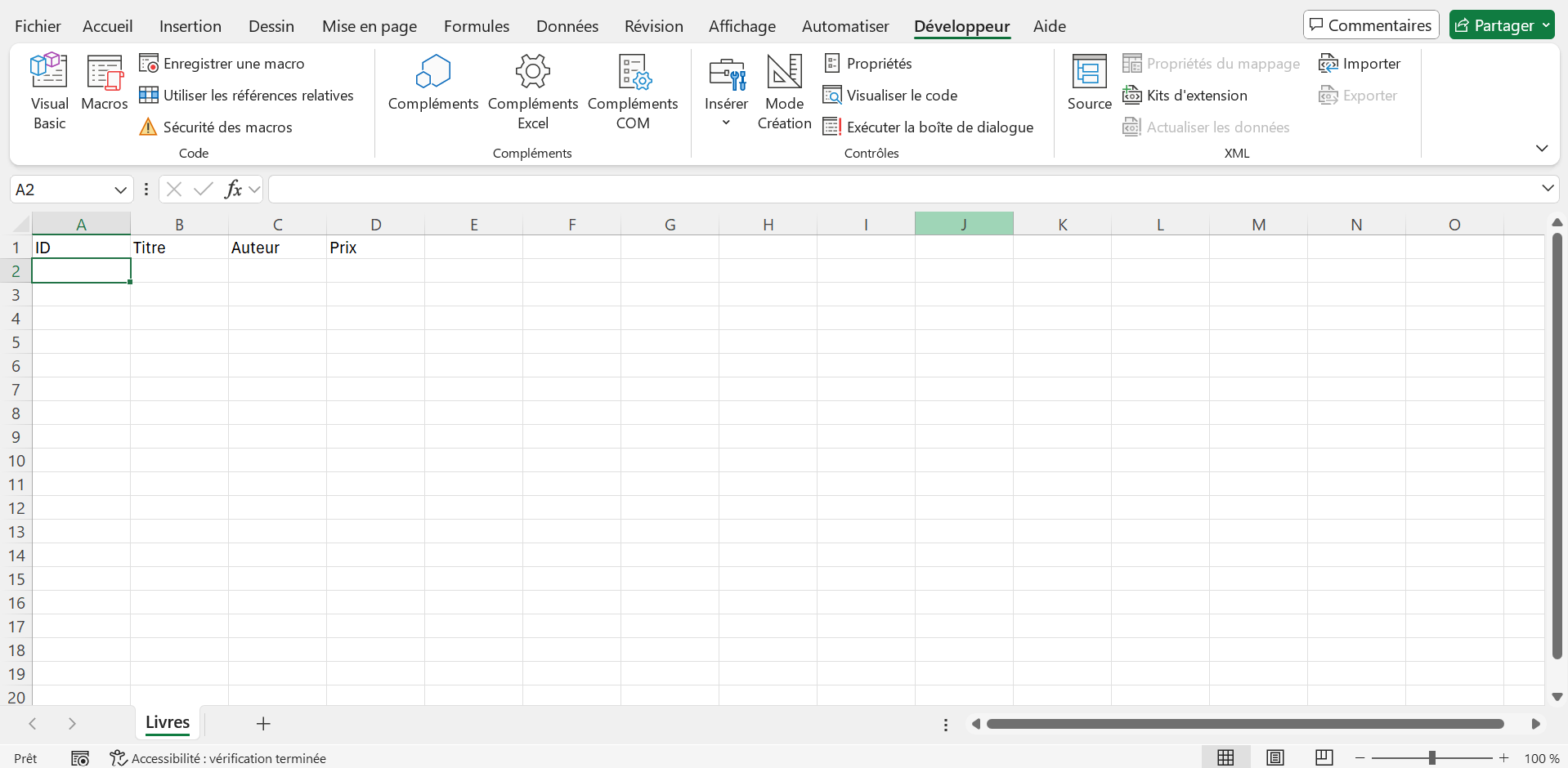
ws. Range("A1:D1"). Value = Array("ID", "Title", "Author", "Price")
ws. Range("A1:D1").Font.Bold = True
ws. Range("A1:D1").Interior.Color = vbCyan
MsgBox "Sheet Books created with the headers"
End Sub
Sub CreerFeuilleLivres()
Dim ws As Worksheet
' Create a new sheet or use an existing one
On Error Resume Next
Set ws = ThisWorkbook.Sheets("Books")
If ws Is Nothing Then
Set ws = ThisWorkbook.Sheets.Add
ws.Name = "Books"
End If
On Error GoTo 0
' Add the headers
ws.Range("A1:D1"). Value = Array("ID", "Title", "Author", "Price")
ws.Range("A1:D1").Font.Bold = True
ws.Range("A1:D1").Interior.Color = vbCyan
MsgBox "Sheet Books created with the headers"
End Sub
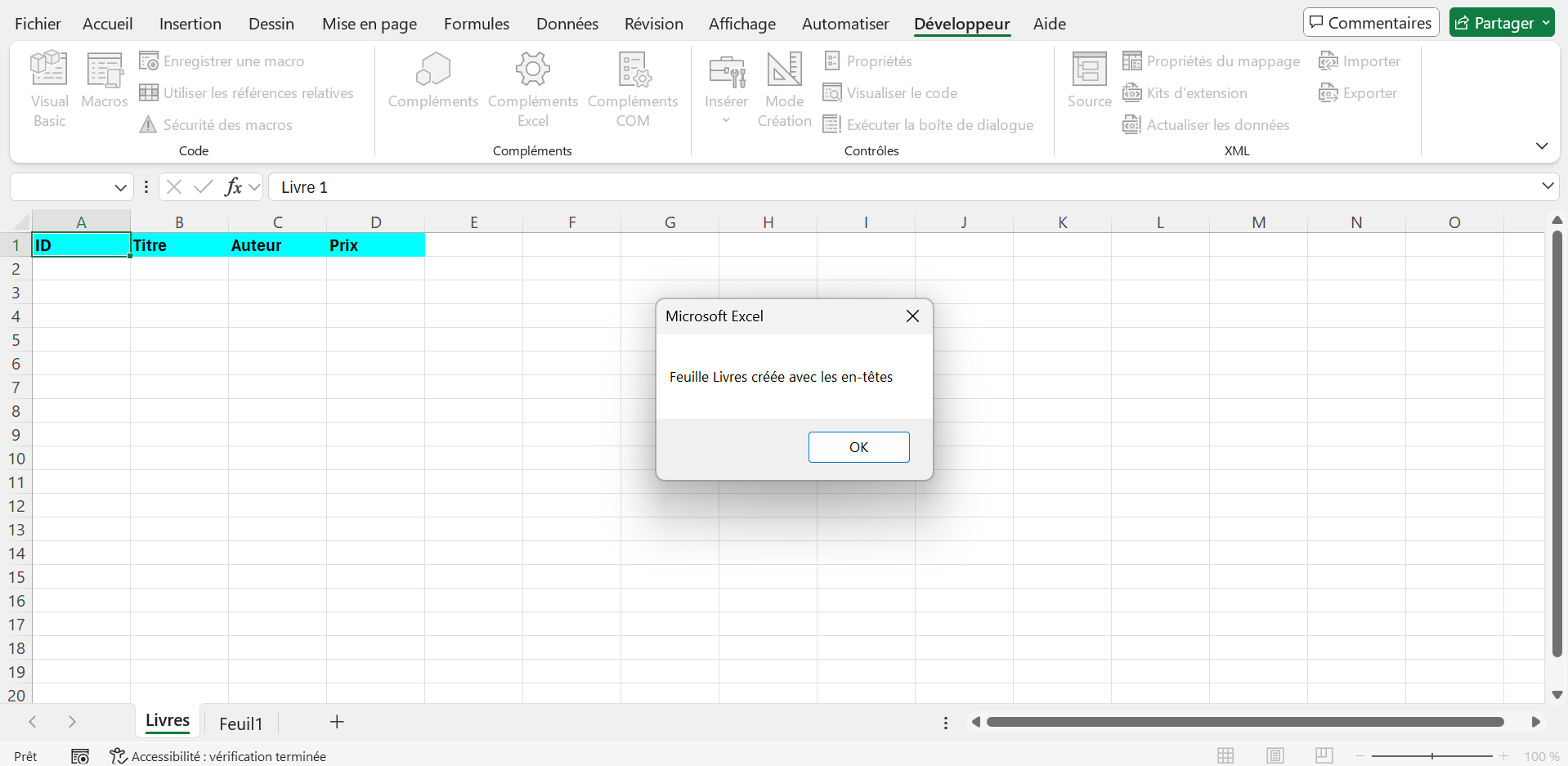
???? Expected outcome:
Example 2: Add Data with Cells
Sub AjouterDonneesLivres()
Dim ws As Worksheet
Set ws = ThisWorkbook.Sheets("Books")
' Add data
ws. Cells(2, 1). Value = 1
ws. Cells(2, 2). Value = "The Little Prince"
ws. Cells(2, 3). Value = "Antoine de Saint-Exupéry"
ws. Cells(2, 4). Value = 12.99
ws. Cells(3, 1). Value = 2
ws. Cells(3, 2). Value = "1984"
ws. Cells(3, 3). Value = "George Orwell"
ws. Cells(3, 4). Value = 15.99
'Format
ws. Range("A2:D3").Borders.LineStyle = xlContinuous
ws. Range("A2:D3"). HorizontalAlignment = xlCenter
MsgBox "Data from added books"
End Sub
Sub AjouterDonneesLivres()
Dim ws As Worksheet
Set ws = ThisWorkbook.Sheets("Books")
' Add data
ws.Cells(2, 1). Value = 1
ws.Cells(2, 2). Value = "The Little Prince"
ws.Cells(2, 3). Value = "Antoine de Saint-Exupéry"
ws.Cells(2, 4). Value = 12.99
ws.Cells(3, 1). Value = 2
ws.Cells(3, 2). Value = "1984"
ws.Cells(3, 3). Value = "George Orwell"
ws.Cells(3, 4). Value = 15.99
' Putting in shape
ws.Range("A2:D3").Borders.LineStyle = xlContinuous
ws.Range("A2:D3"). HorizontalAlignment = xlCenter
MsgBox "Data of added books"
End Sub
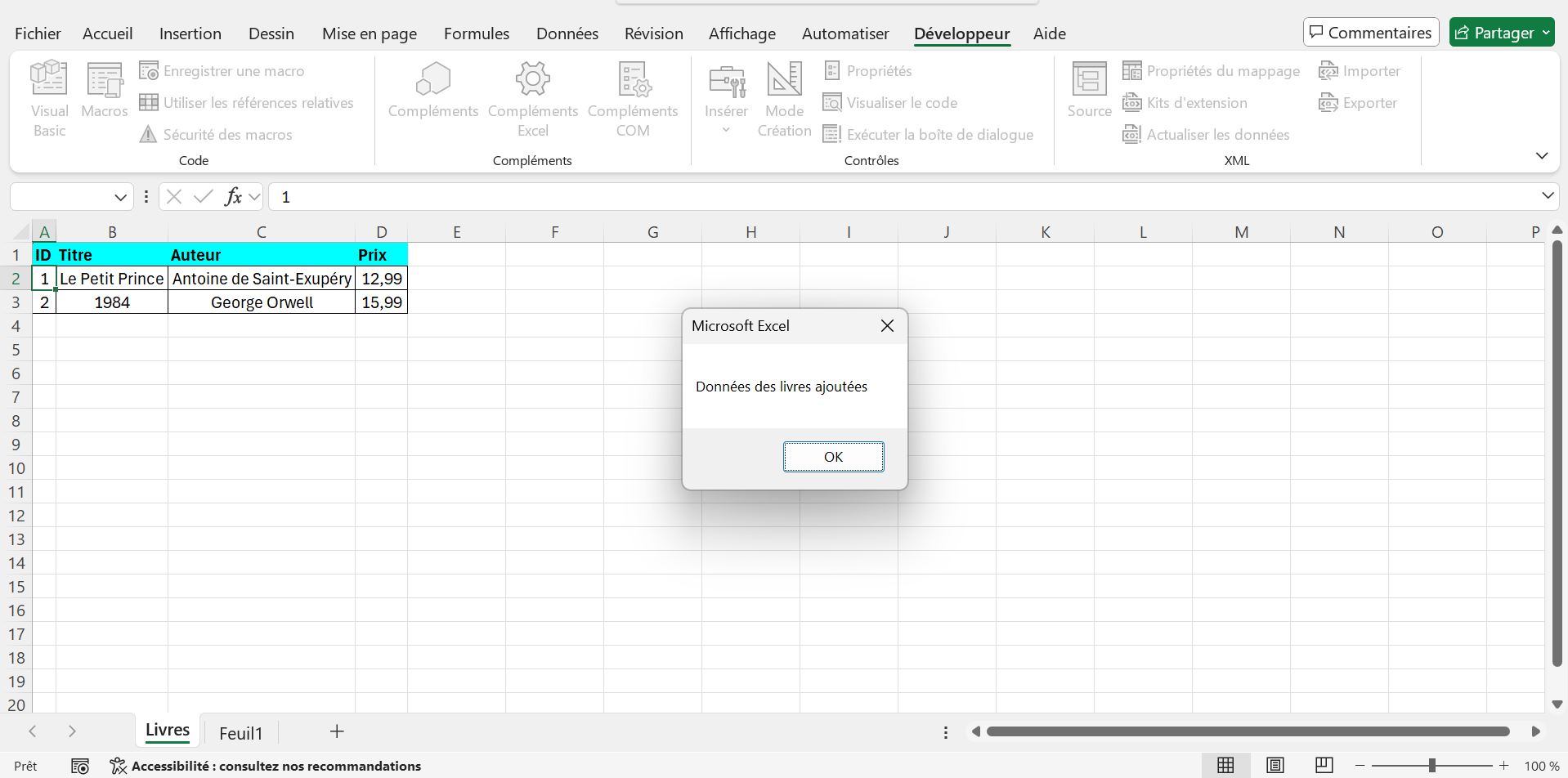
???? Expected outcome:
1. Theory - Conditions and Error Handling
Conditional Structures
- Role : Allow the code to make decisions based on conditions.
There are several conditional structures
- If... Then... Else :
- Syntax :
' Instructions if true
Else
' Instructions if wrong
End If
' Instructions if true
Else
' Instructions so wrong
End If
- Example usage: Check if a price is greater than 10.
- Select Case :
- Syntax :
Case valeur1
' Instructions
Case valeur2
' Instructions
Case Else
"'Default instructions
End Select
Value case 1
' Instructions
Case valeur2
' Instructions
Case Else
' Default instructions
End Select
- Use example: Assign a price category (low, medium, high).
- Combined conditions : You can use the operators
And,Or,Notfor complex conditions (e.g.,If price > 10 And disponible = True Then...).
Error Handling
- Role : Anticipate and manage errors to avoid the macro stopping abruptly.
- On Error Resume Next : Ignore errors and continue execution.
- Example: Attempt to read a cell that might be empty.
- On Error GoTo : Redirects execution to a label in case of an error.
- Syntax :
' Code
Exit Sub
Label:
' Error handling
' Code
Exit Sub
Label:
' Error handling
- Err Property : Contains error information (
Err.Number,Err.Description). - Good practices :
- Use
On Errorsparingly and re-enable normal error handling withOn Error GoTo 0. - Display clear error messages to the user.
- Use
Good practices
- Always test conditions on dummy data.
- Use messages (
MsgBox) to inform the user of results or errors. - Document conditions and error handling with comments.
- Avoid infinite loops in complex conditions.
2. Demonstrations with examples
Example 1: Check the Price of a Book with If... Then
Sub VerifierPrixLivre()
Dim ws As Worksheet
Dim price As Double
Set ws = ThisWorkbook.Sheets("Books")
' Read the price in D2
price = ws. Cells(2, 4). Value
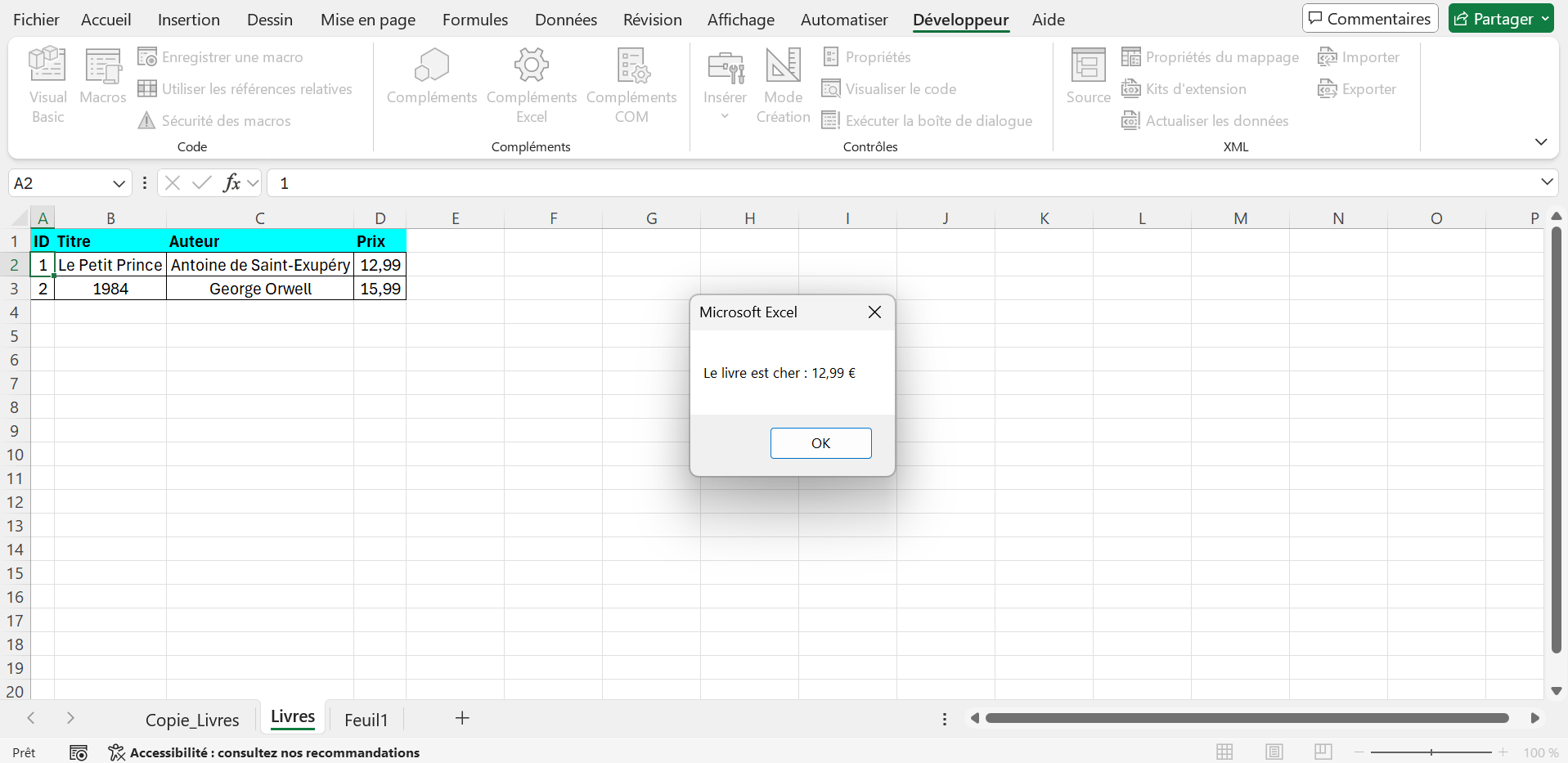
If price > 10 Then
MsgBox "The book is expensive: " & price & " €"
Else
MsgBox "The book is affordable: " & price & " €"
End If
End Sub
Sub VerifierPrixLivre()
Dim ws As Worksheet
Dim price As Double
Set ws = ThisWorkbook.Sheets("Books")
' Read the price in D2
price = ws.Cells(2, 4). Value
If price > 10 Then
MsgBox "The book is expensive: " & price & " €"
Else
MsgBox "The book is affordable: " & price & " €"
End If
End Sub
???? Expected outcome:
Example 2: Categorize Prices with Select Case
Sub CategoriserPrix()
Dim ws As Worksheet
Dim prix As Double
Dim i As Integer
Dim categorie As String
Set ws = ThisWorkbook.Sheets("Livres")
Pour i = 2 à 4
prix = ws. Cellules(i, 4). Valeur
Select Case prix
Cas Is < 10
&category = "Bas"
Cas 10 To 15
&category = "Moyen"
Cas Est > 15
&category = "Élevé"
Cas Else
&category = "Inconnu"
Fin Select
&ws. Cellules(i, 5). Valeur = catégorie
Suivant i
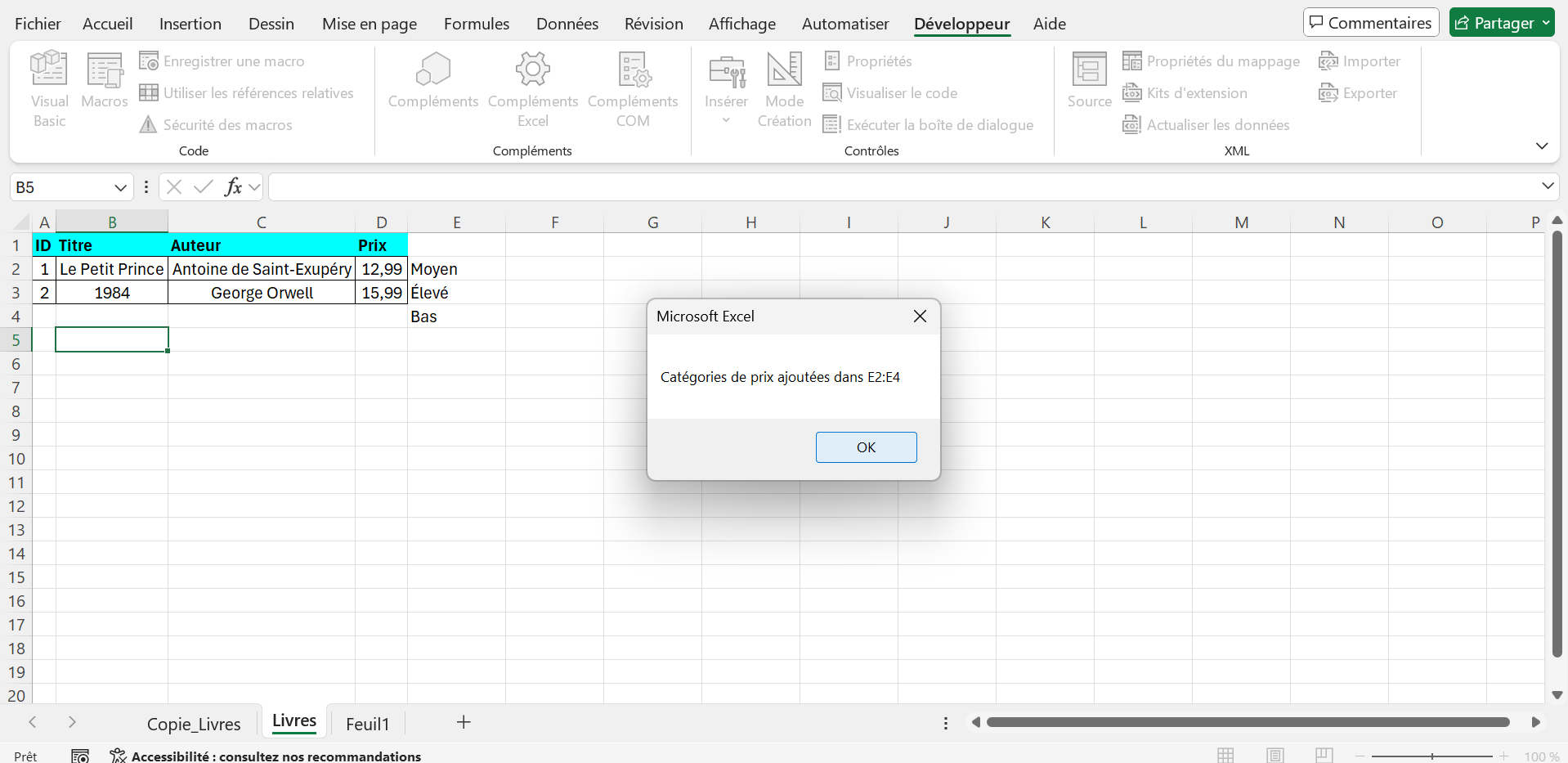
MsgBox "Catégories de prix ajoutées dans E2:E4"
Fin Sub
Sub CategoriserPrix()
Dim ws As Worksheet
Dim prix As Double
Dim i As Integer
Dim categorie As String
Set ws = ThisWorkbook.Sheets("Livres")
Pour i = 2 à 4
prix = ws.Cells(i, 4). Valeur
Select Case prix
Le cas est < 10
categorie = "Bas"
Cas 10 à 15
categorie = "Moyen"
Le cas est > 15
categorie = "Élevé"
Cas Else
categorie = "Inconnu"
Fin de sélection
ws.Cells(i, 5). Valeur = catégorie
Suivant i
MsgBox "Catégories de prix ajoutées dans E2:E4"
Fin Sub
???? Résultat attendu :
1. Theory - Advanced Loops and Tables
Advanced Loops
- Role : Browse through dynamic data ranges (e.g., all non-empty rows of a column).
- Key Techniques :
- Find the last line : Use
Cells(Rows.Count, column). End(xlUp). Rowto find the last non-empty line in a column. - Dynamic Loop : Cycle through rows or columns without knowing their size in advance.
- Nested loop : Use one loop inside another (e.g., traverse rows and columns).
- Find the last line : Use
- Example : Browse all the books in a sheet to list their titles.
VBA Tables
- Definition : An array is a variable that can store multiple values (e.g., a list of titles).
- Declaration :
- Static:
Dim tableau(4) As String(5 elements, indices 0 to 4). - Dynamic:
Dim tableau() As String, resized withReDim tableau(n).
- Static:
- Manipulation :
- Store values:
array(0) = "Book 1". - Rescale:
ReDim Preserve tableau(n)to retain existing data. - Joindre:
Join(array, ", ")to convert a array into text.
- Store values:
- Application example : Store book titles in a table and display them.
Good practices
- Use
Cellswith loops to access data dynamically. - Always check the size of tables before accessing them to avoid errors.
- Combine loops and conditions to filter data (e.g. list only available books).
- Document the code with comments to explain loops and tables.
2. Demonstrations with examples
Example 1: List Book Titles with a Dynamic Loop
Sub ListerTitresLivres()
Dim ws As Worksheet
Dim i As Integer, lastRow As Integer
Dim titles As String
Set ws = ThisWorkbook.Sheets("Books")
lastRow = ws. Cells(ws.Rows.Count, 2). End(xlUp). Row
titles = ""
For i = 2 To lastRow
&titres = titres & ws. Cells(i, 2). Value & vbCrLf
Next i
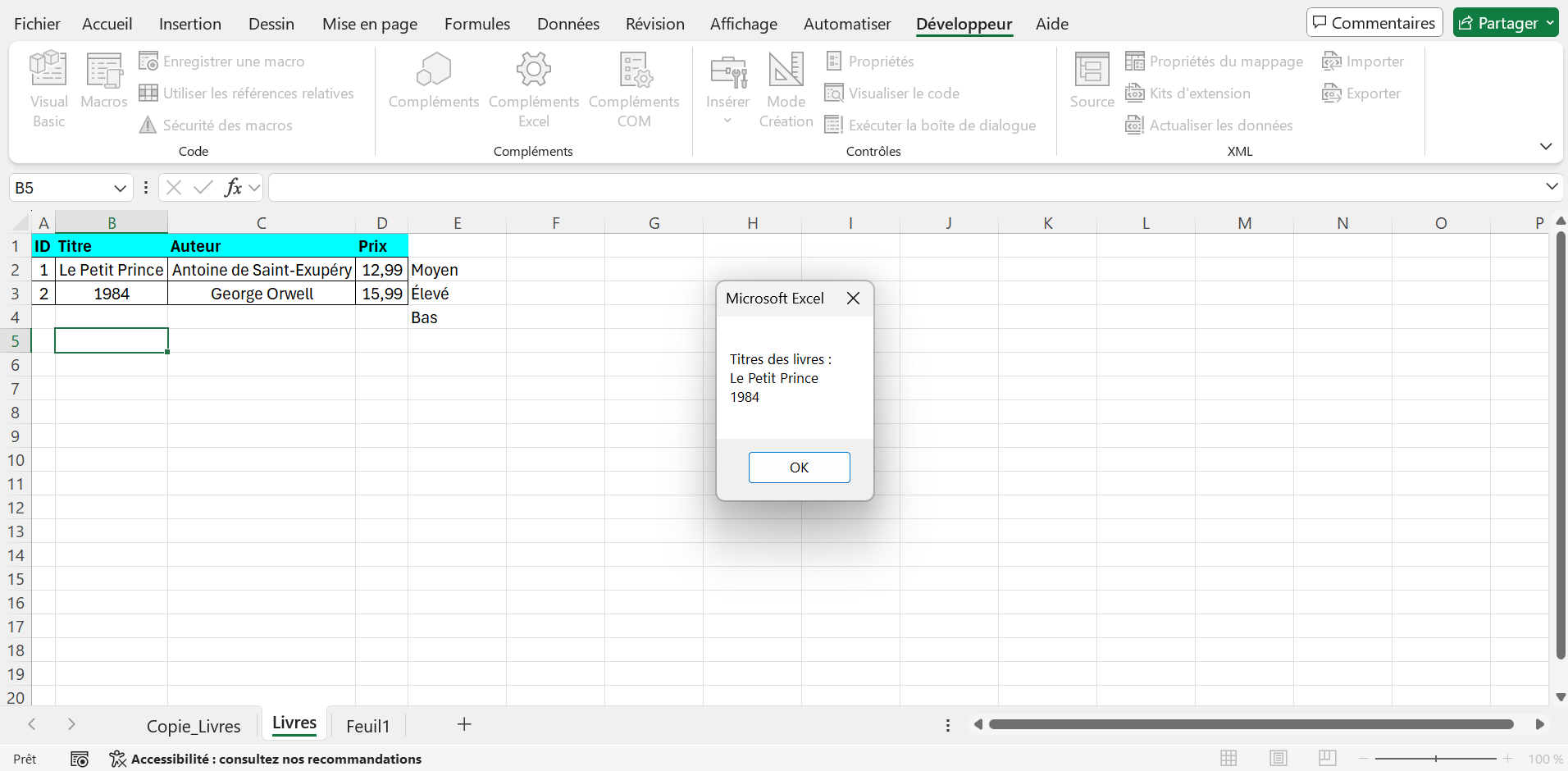
MsgBox "Book titles:" & vbCrLf & titles
End Sub
Sub ListerTitresLivres()
Dim ws As Worksheet
Dim i As Integer, lastRow As Integer
Dim titles As String
Set ws = ThisWorkbook.Sheets("Books")
lastRow = ws.Cells(ws.Rows.Count, 2). End(xlUp). Row
titles = ""
Pour i = 2 To lastRow
securities = securities & ws.Cells(i, 2). Value & vbCrLf
Next i
MsgBox "Book titles:" & vbCrLf & titles
Fin Sub
???? Expected outcome:
Example 2: Store Prices in a Table
Sub CalculerMoyennePrix()
Dim ws As Worksheet
Dim i As Integer, lastRow As Integer
Dim price() As Double
Dim sum As Double, average As Double
Set ws = ThisWorkbook.Sheets("Books")
lastRow = ws. Cells(ws.Rows.Count, 4). End(xlUp). Row
' Size the table
ReDim price(lastRow - 2)
' Store prices
For i = 2 To lastRow
&price(i - 2) = ws. Cells(i, 4). Value
sum = sum + price(i - 2)
Next i
' Calculate the average
If lastRow > 1 Then
&average = sum / (lastRow - 1)
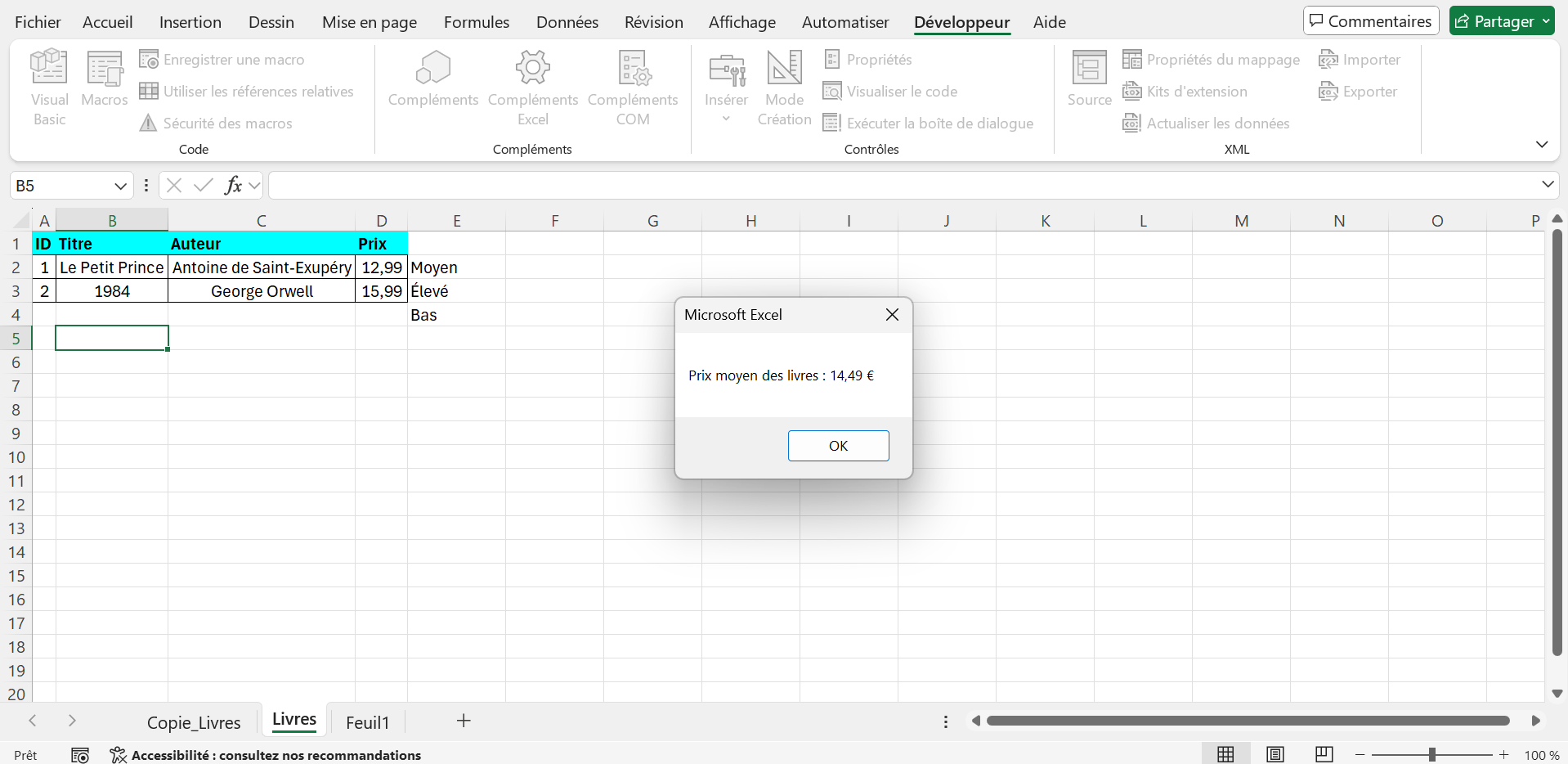
MsgBox "Average book price: " & Format(average, "0.00") & " €"
Else
&MsgBox "No book found"
End If
End Sub
Sub CalculerMoyennePrix()
Dim ws As Worksheet
Dim i As Integer, lastRow As Integer
Dim price() As Double
Dim sum As Double, average As Double
Set ws = ThisWorkbook.Sheets("Books")
lastRow = ws.Cells(ws.Rows.Count, 4). End(xlUp). Row
' Size the table
ReDim price(lastRow - 2)
' Store the prices
Pour i = 2 To lastRow
price(i - 2) = ws.Cells(i, 4). Value
sum = sum + price (i - 2)
Next i
' Calculate the average
If lastRow > 1 Then
average = sum / (lastRow - 1)
MsgBox "Average price of books: " & Format(average, "0.00") & " €
Other
MsgBox "No book found"
End If
Fin Sub
???? Expected outcome:
1. Theory - User Forms Creation
UserForms
- Definition : A UserForm (user form) is a custom graphical interface created in the VBA editor to interact with the user.
- Access : In the VBA editor (Alt+F11), Insert > UserForm.
- Components :
- Design window: where controls are placed visually.
- Toolbox: contains controls like TextBox, Label, Button, ComboBox.
- Properties window: allows configuring the properties of controls (for example, Name, Caption).
Common controls
- Label : Display static text (e.g. "Book title").
- TextBox : Allows the user to enter text or numbers.
- ComboBox : Drop-down list to select an option from several.
- CommandButton : Button to trigger an action (for example, "Add").
- Key Properties :
Name: control name for VBA code.Caption: text displayed on the control (e.g. "Add" for a button).Value: control content (for example, text entered in a TextBox).
Interaction with leaves
- Display a UserForm :
UserForm1.Showin a macro. - Close a UserForm :
Unload Mein the form code. - Write in a sheet : Use
RangeorCellsto insert the entered data. - Application example : Add a book via a form with fields for title, author and price.
Good practices
- Name the controls in a speaking manner (e.g.,
txtTitre,btnAjouter). - Validate user inputs to avoid errors (e.g. check if a field is empty).
- Use messages (
MsgBox) to confirm actions or report errors. - Test forms with dummy data.
2. Demonstrations with examples
Example 1: Create a UserForm to Add a Book
Configuration:
- Create a new excel workbook and save it as
Lecon6.xlsm. - In the "Books" sheet, enter the headers in A1:D1: "ID", "Title", "Author", "Price".
- Open VBA editor (Alt+F11), Insert > UserForm.
- In the UserForm (named UserForm1 by default):
- Add a Label (Caption: "Title"), named
lblTitre. - Add a TextBox, named
txtTitre. - Add a Label (Caption: "Author"), named
lblAuthor. - Add a ComboBox, named
cboAutory. - Add a Label (Caption: "Price"), named
lblPrix. - Add a TextBox, named
txtPrix. - Add a CommandButton (Caption: "Add"), named
btnAjouter.
- Add a Label (Caption: "Title"), named
UserForm Code:
Private Sub btnAjouter_Click()
Dim ws As Worksheet
Dim lastRow As Long
Set ws = ThisWorkbook.Sheets("Books")
lastRow = ws. Cells(ws.Rows.Count, 1). End(xlUp). Row + 1
'Validate the entries
If txtTitre.Value = "" Or cboAuteur.Value = "" Or txtPrix.Value = "" Then
MsgBox "Please fill in all fields", vbExclamation
"Exit Sub
End If
'Add data
ws. Cells(lastRow, 1). Value = lastRow - 1
ws. Cells(lastRow, 2). Value = txtTitre.Value
ws. Cells(lastRow, 3). Value = cboAuteur.Value
ws. Cells(lastRow, 4). Value = CDbl(txtPrix.Value)
' Close the form
Unload Me
MsgBox "Book added to line " & lastRow
End Sub
Private Sub UserForm_Initialize()
'Fill in the ComboBox with authors
&cboAutoryAddItem "Antoine de Saint-Exupéry"
&cboAuthor.AddItem "George Orwell"
&cboAuthor.AddItem "Albert Camus"
End Sub
???? Expected outcome:

Private Sub btnAjouter_Click()
Dim ws As Worksheet
Dim lastRow As Long
Set ws = ThisWorkbook.Sheets("Books")
lastRow = ws.Cells(ws.Rows.Count, 1). End(xlUp). Row + 1
' Validate the entries
If txtTitre.Value = "" Or cboAuteur.Value = "" Or txtPrix.Value = "" Then
MsgBox "Please fill in all fields", vbExclamation
Exit Sub
End If
' Add the data
ws.Cells(lastRow, 1). Value = lastRow - 1
ws.Cells(lastRow, 2). Value = txtTitre.Value
ws.Cells(lastRow, 3). Value = cboAuteur.Value
ws.Cells(lastRow, 4). Value = CDbl(txtPrix.Value)
' Close the form
Unload Me
MsgBox "Book added to line " & lastRow
End Sub
Private Sub UserForm_Initialize()
' Fill out the ComboBox with authors
cboAuteur.AddItem "Antoine de Saint-Exupéry"
cboAutoryAddItem "George Orwell"
cboAutoryAddItem "Albert Camus"
End Sub
Macro to display the form:
Sub AfficherFormulaireLivre()
UserForm1.Show
End Sub
Sub AfficherFormulaireLivre()
UserForm1.Show
End Sub
???? Expected outcome:


1. Theory - VBA Events
Introduction to Events
- Definition : VBA events are automatically triggered procedures in response to actions in Excel (e.g. changing a cell, opening a workbook).
- Event Types :
- Sheet events: triggered by actions in a specific sheet (e.g.,
Worksheet_Changefor a cell change). - Workbook events : triggered by actions at the workbook level (e.g.,
Workbook_Openupon opening).
- Sheet events: triggered by actions in a specific sheet (e.g.,
- Access : in the VBA editor (Alt+F11), double-click on the
ThisWorkbookobject or a sheet in the Project Explorer, then select an event from the drop-down list.
Current Events
- Workbook_Open : run on opening the workbook (for example, to initialize settings).
- Worksheet_Change : executed when a cell is modified in a sheet.
- Worksheet_SelectionChange : executed when a cell is selected.
- Syntax :
' Code executed when changing the Target range
End Sub
' Code executed when modifying the Target range
End Sub
- Target : Represents the range of cells modified.
Event Management
- Validation : Use conditions to check for changes (e.g. if a changed cell is in a specific range).
- Temporary deactivation of events : Use
Application.EnableEvents = Falseto avoid infinite loops. - Good practices :
- Limit the use of events to avoid slowing down Excel.
- Always reactivate events with
Application.EnableEvents = Trueafter deactivating them. - Test events on dummy data to avoid unwanted changes.
2. Demonstrations with examples
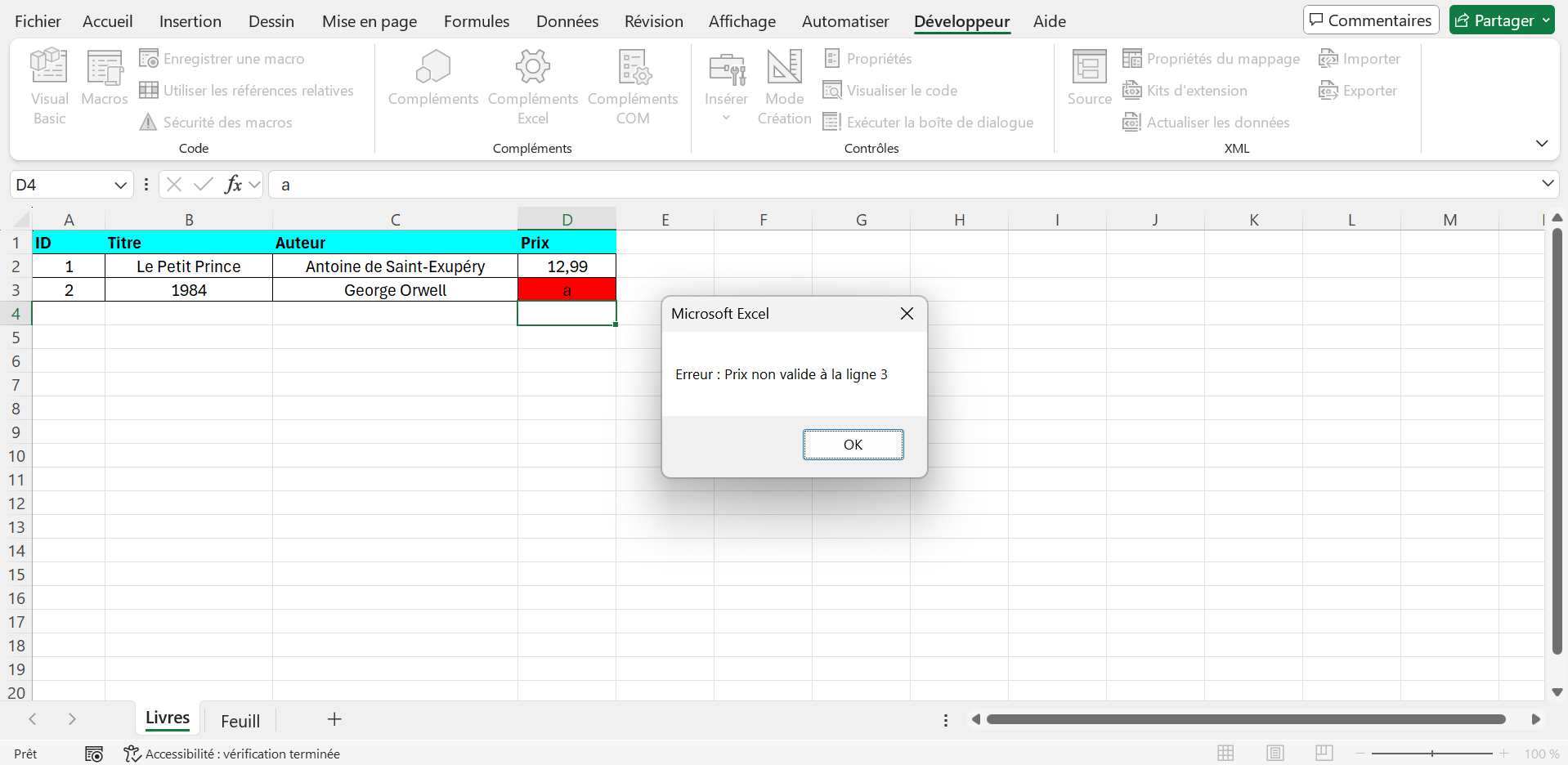
Example 1: Validate Prices with Worksheet_Change
Sub-working range prive_Change(target ByVal as a range)
Dim Cell As Range
' Check if the modification is in the Price (D)
column
If Not Intersect(Target, Me.Range("D2:D" & Me.Rows.Count)) Is Nothing Then
"Application.EnableEvents = False
"For each cell in the target
If cell. Column = 4 And cell.Row >= 2 Then
&On Error Reprendre Next
&If Not IsNumeric(cell.Value) Or cell. Value <= 0 Then
&nps &cell.Interior.Color = vbRed
"Error: Price not valid on line" & cell. Row
&nps &cell. Value = ""
&nps Else
&cell.Interior.ColorIndex = xlNone
Fin Si
&On Error GoTo 0
Fin Si
Next cell
Application.EnableEvents = True
Fin Si
Fin Sub
Sub-working range prive_Change(target ByVal as range)
Dim cell As Range
' Check if the modification is in the Price column (D)
If Not Intersect(Target, Me.Range("D2:D" & Me.Rows.Count)) is nothing then
Application.EnableEvents = False
For each cell in the target
Si cell.Column = 4 Et cell.Row >= 2 Then
On Error Resume Next
If Not IsNumeric(cell.Value) Or cell.Value <= 0 Then
cell.Interior.Color = vbRed
MsgBox "Error: Price not valid on line " & cell.Row
cell.Value = ""
Other
cell.Interior.ColorIndex = xlNone
End If
On Error GoTo 0
End If
Next cell
Application.EnableEvents = True
End If
Fin Sub
???? Expected outcome:
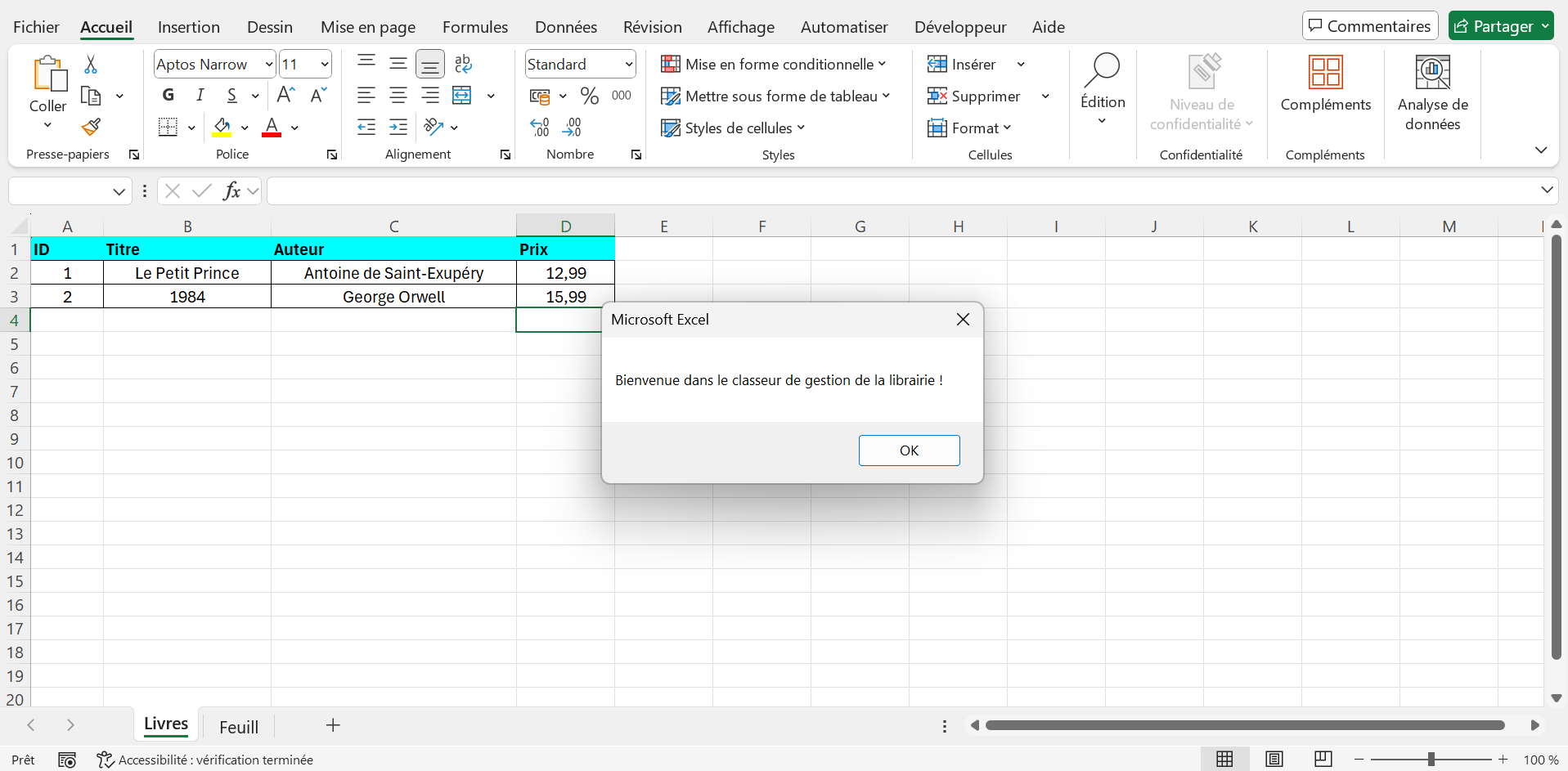
Example 2: Show Opening Message with Workbook_Open
Private Sub Workbook_Open()
MsgBox "Welcome to the library management workbook!"
Fin Sub
Private Workbook_Open() sub-session
MsgBox "Welcome to the library management workbook!"
Fin Sub
???? Expected outcome:
1. Theory - Automated Reporting
Concepts of Automated Reporting
- Definition : An automated report is a synthesis of data generated by a VBA macro, often presented in a new sheet or external file.
- Components :
- Data collection : browse sheets with loops to extract information.
- Treatment : use tables and conditions to calculate statistics (e.g. mean, total).
- Presentation : write the results in a sheet with formatting or export them to a text file.
- Key Methods :
RangeandCellsfor writing data.Worksheets.Addto create a report sheet.OpenandPrintto write in a text file.
Advanced techniques
- Automatic formatting : apply borders, colors, and fonts with
. Borders,.Interior.Color,. Font. - Data Export : use VBA to write in a text file with
FileSystemObjector simple methods likeOpen. - Error handling : anticipate cases where sheets or data are missing.
- User interaction : use UserForms to allow the user to choose report settings.
Good practices
- Structure reports with clear headers and readable formatting.
- Use dynamic loops to adapt to variable data.
- Add messages to confirm report creation.
- Test on copies of workbooks to avoid data loss.
Part 2: Demonstrations with Examples
Example 1: Report of Available Books
Sub RapportLivresDisponibles()
Dim wsLivres As Worksheet, wsRapport As Worksheet
Dim lastRow As Long, i As Long, rowRapport As Long
Dim titresDisponibles() En tant que chaîne, compter comme long
' Configurer les feuilles
Set wsLivres = ThisWorkbook.Sheets("Livres")
On Error Resume Next
Set wsRapport = ThisWorkbook.Sheets("Rapport")
Si wsRapport n’est Rien Alors
Set wsRapport = ThisWorkbook.Sheets.Add
wsRapport.Name = "Rapport"
Else
&wsRapport.Cells.Clear
Fin Si
On Error GoTo 0
'Find the last line
lastRow = wsLivres.Cells(wsLivres.Rows.Count, 1). End(xlUp). Row
' Count the available books
&count = 0
"Pour i = 2 À lastRow
"If wsLivres.Cells(i, 5). Value = True Then number = number + 1
Next i
' Size the table
ReDim titresAnimals(count - 1)
' Collect available titles
&count = 0
"Pour i = 2 À lastRow
If wsLivres.Cells(i, 5). Value = True Then
&nps &titresDisponibilities(count) = wsLivres.Cells(i, 2). Value
&count = number + 1
End Si
Next i
' Write the report
With wsRapport
. Cells(1, 1). Value = "Available Books Report"
. Cells(1, 1).Font.Bold = True
. Cells(1, 1).Font.Size = 14
. Cells(2, 1). Value = "Title"
. Cells(2, 1).Font.Bold = True
.Cells(2, 1).Interior.Color = vbCyan
"For i = 0 To count - 1
1. Cells(i + 3, 1). Value = titresDisponible(i)
Next i
.Range("A2:A" & (count + 2)).Borders.LineStyle = xlContinuous
.Columns("A"). AutoFit
End With
MsgBox "Report of available books created in the Report sheet"
Fin Sub
Sub RapportLivresDisponibility()
Dim wsLivres As Worksheet, wsRapport As Worksheet
Dim lastRow As Long, i As Long, rowRapport As Long
Dim titresAssignment() As a channel, count as long
' Configure the sheets
Set wsLivres = ThisWorkbook.Sheets("Books")
On Error Resume Next
Set wsRapport = ThisWorkbook.Sheets("Report")
If wsRapport is nothing then
Define wsRapport = ThisWorkbook.Sheets.Add
wsRapport.Name = "Report"
Other
wsRapport.Cells.Clear
End If
On Error GoTo 0
' Find the last line
lastRow = wsLivres.Cells(wsLivres.Rows.Count, 1). End(xlUp). Row
' Count the available books
count = 0
Pour i = 2 To lastRow
If wsLivres.Cells(i, 5). Value = True Then number = number + 1
Next i
' Size the table
ReDim titresAvailable(count - 1)
' Collect the available titles
count = 0
Pour i = 2 To lastRow
If wsLivres.Cells(i, 5). Value = True Then
titresDisponibles(count) = wsLivres.Cells(i, 2). Value
count = count + 1
End If
Next i
' Write the report
With wsRapport
. Cells(1, 1). Value = "Ratio of available books"
. Cells(1, 1).Font.Bold = True
. Cells(1, 1).Font.Size = 14
. Cells(2, 1). Value = "Title"
. Cells(2, 1).Font.Bold = True
. Cells(2, 1).Interior.Color = vbCyan
For i = 0 To count - 1
. Cells(i + 3, 1). Value = title
Next i
. Range("A2:A" & (account + 2)).Borders.LineStyle = xlContinuous
. Columns("A"). AutoFit
Finish with
MsgBox "Report of available books created in the Report sheet"
Fin Sub
???? Expected outcome:


Example 2: Client Statistical Report
Sub RapportStatistiquesClients()
Dim wsClients As Worksheet, wsRapport As Worksheet
Dim lastRow As Long, i As Long
Dim total Like Double, average Like Double, count Like Long
Set wsClients = ThisWorkbook.Sheets("Clients")
On Error Resume Next
Set wsRapport = ThisWorkbook.Sheets("Report")
If wsRapport is Nothing Then
"Set wsRapport = ThisWorkbook.Sheets.Add
&wsRapport.Name = "Rapport"
Else
&wsRapport.Cells.Clear
End If
"nbsp;"nbsp;" "On Error GoTo 0
lastRow = wsClients.Cells(wsClients.Rows.Count, 1). End(xlUp). Row
&total = 0
&count = 0
"Pour i = 2 À lastRow
&total = total + wsClients.Cells(i, 3). Value
&count = number + 1
Next i
If count > 0 Then
&average = total / number
End If
With wsRapport
. Cells(1, 1). Value = "Client Statistics Report"
. Cells(1, 1).Font.Bold = True
. Cells(1, 1).Font.Size = 14
. Cells(2, 1). Value = "Statistic"
. Cells(2, 2). Value = "Value"
. Cells(2, 1).Font.Bold = True
. Cells(2, 2).Font.Bold = True
.Cells(2, 1).Interior.Color = vbGreen
.Cells(2, 2).Interior.Color = vbGreen
. Cells(3, 1). Value = "Total Balance"
. Cells(3, 2). Value = Format(total, "0.00") & " €
. Cells(4, 1). Value = "Average Balance"
"Cells(4, 2). Value = Format(mean, "0.00") & " €
.Cells(5, 1). Value = "Number of Clients"
.Cells(5, 2). Value = number
.Range("A2:B5").Borders.LineStyle = xlContinuous
.Columns("A:B"). AutoFit
End With
MsgBox "Statistical client report created in the Report sheet"
Fin Sub
Sub RapportStatistiquesClients()
Dim wsClients As Worksheet, wsRapport As Worksheet
Dim lastRow As Long, i As Long
Dim total As Double, average As Double, count as long
Set wsClients = ThisWorkbook.Sheets("Clients")
On Error Resume Next
Set wsRapport = ThisWorkbook.Sheets("Report")
If wsRapport is nothing then
Define wsRapport = ThisWorkbook.Sheets.Add
wsRapport.Name = "Report"
Other
wsRapport.Cells.Clear
End If
On Error GoTo 0
lastRow = wsClients.Cells(wsClients.Rows.Count, 1). End(xlUp). Row
total = 0
count = 0
Pour i = 2 To lastRow
total = total + wsClients.Cells(i, 3). Value
count = count + 1
Next i
If count > 0 Then
average = total / number
End If
With wsRapport
. Cells(1, 1). Value = "Client Statistics Report"
. Cells(1, 1).Font.Bold = True
. Cells(1, 1).Font.Size = 14
. Cells(2, 1). Value = "Statistic"
. Cells(2, 2). Value = "Value"
. Cells(2, 1).Font.Bold = True
. Cells(2, 2).Font.Bold = True
. Cells(2, 1).Interior.Color = vbGreen
. Cells(2, 2).Interior.Color = vbGreen
. Cells(3, 1). Value = "Total Balance"
. Cells(3, 2). Value = Format(total, "0.00") & " €"
. Cells(4, 1). Value = "Average Balance"
. Cells(4, 2). Value = Format(mean, "0.00") & " €"
. Cells(5, 1). Value = "Number of Clients"
. Cells(5, 2). Value = number
. Range("A2:B5").Borders.LineStyle = xlContinuous
. Columns("A:B"). AutoFit
Finish with
MsgBox "Statistical client report created in the Report sheet"
Fin Sub
???? Expected outcome:


1. Theory - Custom Functions and Advanced Data Manipulation
Custom Functions (UDF)
- Definition : A User-Defined Function is a VBA procedure that can be used directly in Excel formulas, such as SUM or VLOOKUP.
- Syntax :
' Function Code
NomFunction = Result
End Function
' Function code
NomFonction = Result
End Function
- Usage : Enter "=NomFunction(A1, B1)" in an Excel cell.
- Volatile Application : Use
Application.Volatileto force recalculation at each sheet modification. - Example : A function to calculate a discount on the price of a book.
Advanced Data Manipulation
- Dynamic ranges :
UsedRange: Selects all cells used in a sheet.Offset: Moves the reference by a range (e.g.,Range("A1").Offset(1, 0)returns A2).Resize: Resizes a range (e.g.,Range("A1").Resize(2, 3)selects A1:C2).CurrentRegion: Selects a contiguous region around a cell (useful for tables).
- Tables for optimization :
- Load a range into a VBA array with
Range.Valueto reduce cell accesses. - Write a table in a range in one operation.
- Load a range into a VBA array with
- Application example : Extract a unique list of titles or authors from a sheet.
Good practices
- Name the functions in a clear and meaningful way (e.g.
CalculerRemise). - Validate function parameters to avoid errors (e.g. check data types).
- Use tables to process large amounts of data quickly.
- Document functions with comments to explain their role and parameters.
2. Demonstrations with an example
Custom Function to Calculate Discount
Steps:
- Create a new Excel workbook and save it as
Librairie_lecon1_Intermediaire.xlsm. - In the "Books" sheet, enter the headers in A1:D1: "ID", "Title", "Author", "Price".
- Add data in A2:D5:
- 1, "The Little Prince", "Antoine de Saint-Exupéry", 12.99
- 2, "1984", "George Orwell", 15.99
- 3, "The Stranger", "Albert Camus", 10.50
- 4, "Animal Farm", "George Orwell", 9.99
- Create a custom function to calculate a discount:
Function CalculerRemise(Price As Double, Percentage As Double) As Double
If Prix < 0 Or Pourcentage < 0 Or Pourcentage > 100 Then
&CalculerRemise = CVErr(xlErrValue)
Else
&CalculerRemise = Price * (1 - Percentage / 100)
End If
End Function
Function CalculerRemise(Price As Double, Percentage As Double) As Double
If Price < 0 Gold Percentage < 0 Gold Percentage > 100 Then
CalculerRemise = CVErr(xlErrValue)
Else
CalculerRemise = Price * (1 - Percentage / 100)
End If
End Function
Usage:
- In the "Books" sheet, enter
=CalculerRemise(D2, 10)into E2 to apply a 10% discount to D2’s price. - Copy the formula to E3:E5.
- Check that:
- E2 displays 11.69 (12.99 * 0.9), E3 displays 14.39, etc.
- If a price or percentage is invalid, the function returns a #VALUE! error.
???? Expected outcome:

1. Theory - Advanced Management of UserForms
Dynamic UserForms
- Definition : Dynamic UserForms allow to add or modify controls (TextBox, ComboBox, etc.) at runtime according to data or needs.
- Adding Controls : Use
Controls.Addto create controls dynamically.
- Dynamic properties : Configure
Top,Left,Width,Height, and other added control properties.
Advanced Input Validation
- Techniques :
- Checking formats with regular expressions (e.g. check an ISBN).
- Uniqueness control (e.g. avoid duplicate titles in a sheet).
- Real-time validation with event
Changeof controls.
- Error handling : Display error messages via Labels or
MsgBox.
Check Events
- Common events :
Change: Triggered when a TextBox or ComboBox is modified.Click: Triggered when a button or checkbox is clicked.MouseMove: Triggered when moving the mouse over a control.
- Usage : Associate dynamic actions, like enable/disable buttons based on inputs.
Good practices
- Name the dynamic controls with descriptive prefixes (e.g.
txtDynamique1). - Validate inputs as they are entered to improve user experience.
- Use events to reduce unnecessary clicks (for example, automatic ComboBox update).
- Test forms with varied data to ensure their robustness.
2. Demonstrations with an example
Dynamic UserForm to Add a Book
Initial setup:
- Create a new Excel workbook and save it as
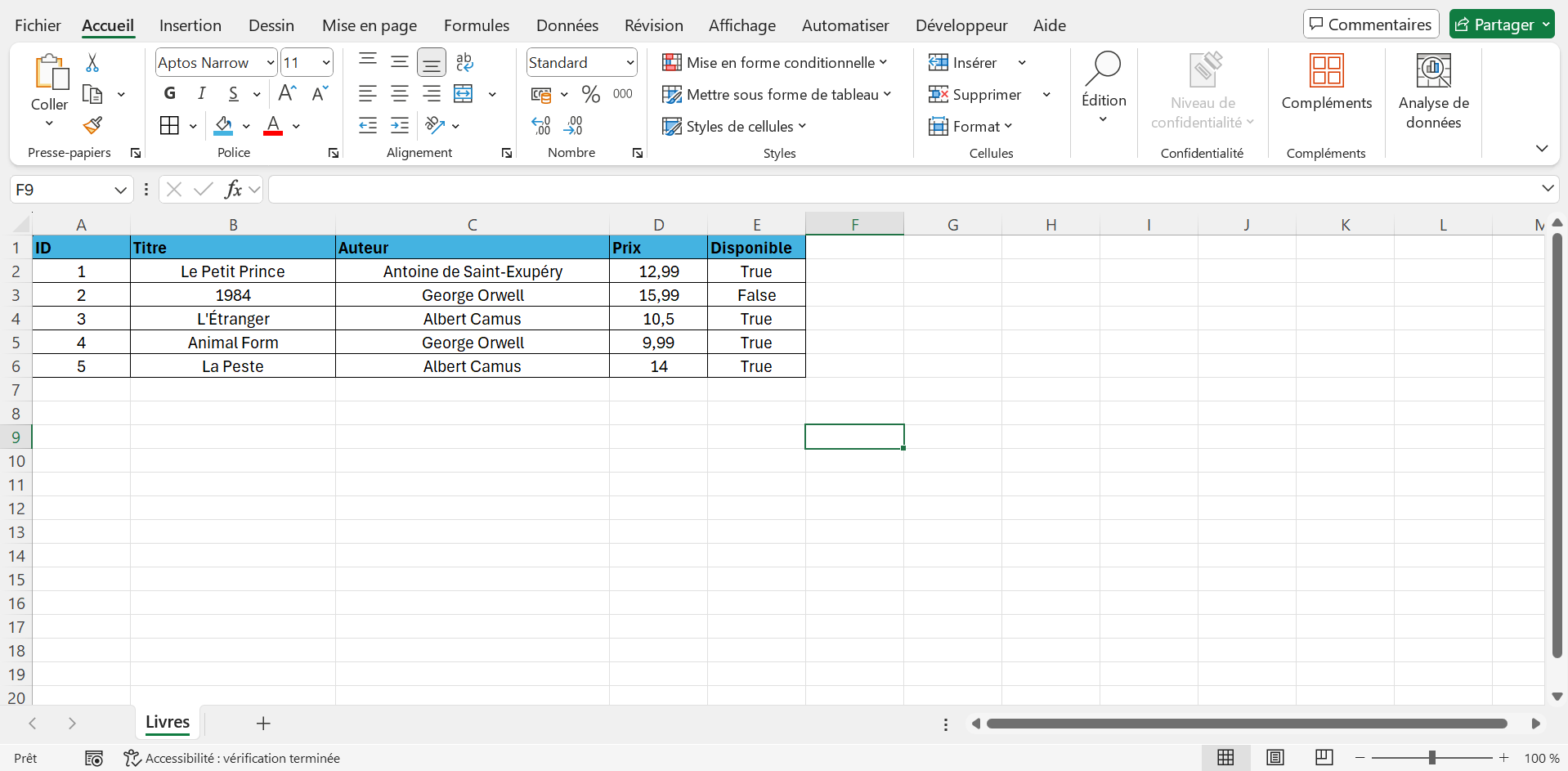
Librairie_lecon2_Intermediaire.xlsm. - In the "Books" sheet, enter the headers in A1:E1: "ID", "Title", "Author", "Price", "Available".
- Add data in A2:E6:
- 1, "The Little Prince", "Antoine de Saint-Exupéry", 12.99, True
- 2, "1984", "George Orwell", 15.99, False
- 3, "The Stranger", "Albert Camus", 10.50, True
- 4, "Animal Farm", "George Orwell", 9.99, True
- 5, "The Plague", "Albert Camus", 14.00, True
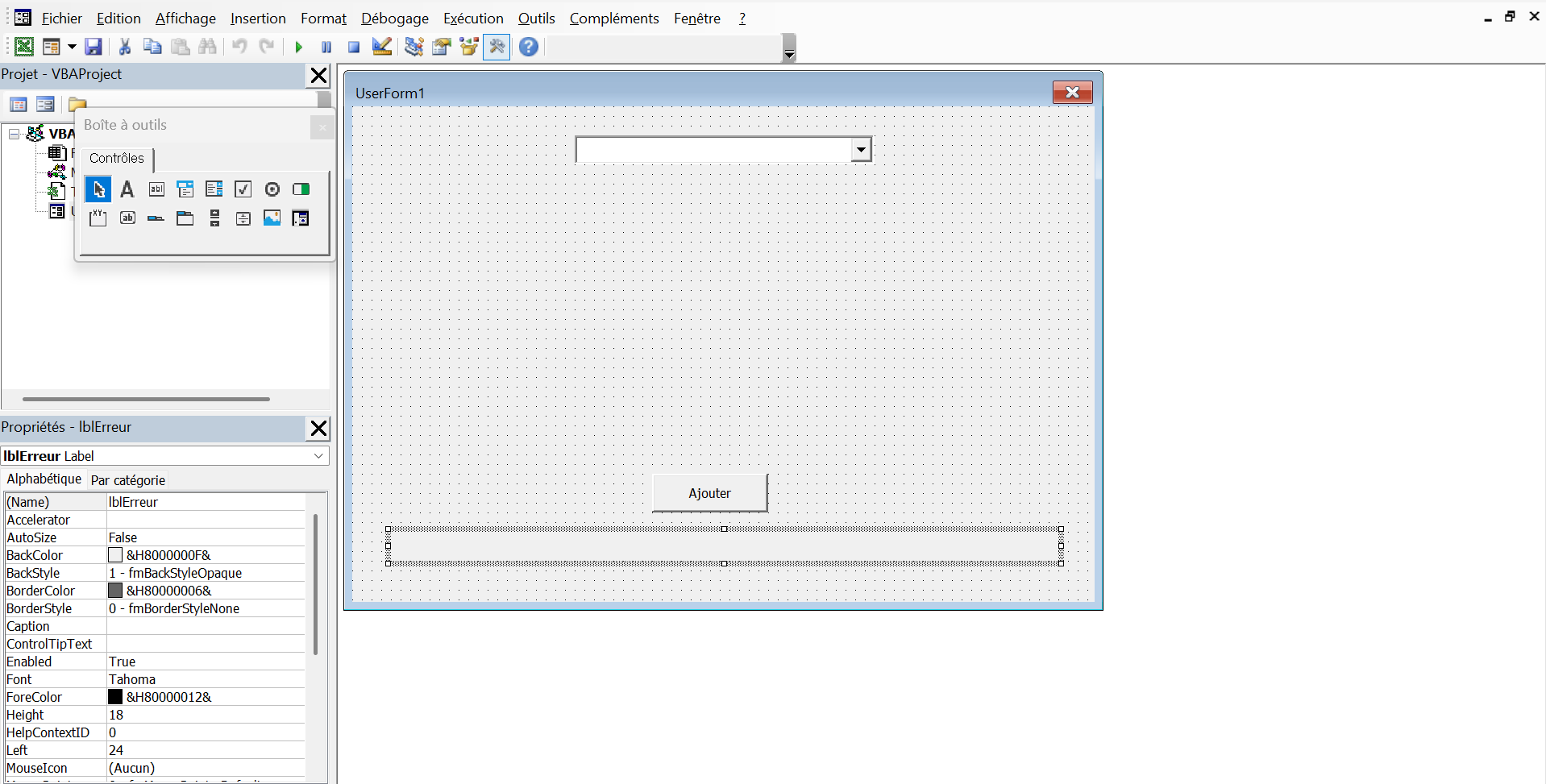
- Create a UserForm (UserForm1) with:
- A ComboBox (
cboChamps) to choose the number of fields to display (1 to 3). - A CommandButton (Caption: "Add"), named
btnAjouter. - A Label (Caption: ""), named
lblErreurto display errors.
- A ComboBox (
UserForm Code:
Private Sub UserForm_Initialize()
&cboChamps.AddItem "1"
&cboChamps.AddItem "2"
&cboChamps.AddItem "3"
cboChamps.Value = "1"
Call cboChamps_Change
End Sub
Private sub cboChamps_Change()
Dim i As Integer
"nbsp;"nbsp;" "nbsp;"Dim ctrl As Control
'Remove existing dynamic controls
For Each ctrl In Me.Controls
If Left(ctrl.Name, 8) = "txtChamp" Then
Me.Controls.Remove ctrl. Name
End Si
Next ctrl
'Add TextBox dynamically
Pour i = 1 À CInt(cboChamps.Value)
Set ctrl = Me.Controls.Add("Forms.TextBox.1", "txtChamp" & i, True)
&ctrl. Top = 20 + (i * 30)
&ctrl. Left = 100
&ctrl. Width = 150
&ctrl. Name = "txtChamp" & i
Select Case i
&Case 1: ctrl. Text = "Title"
&Case 2: ctrl. Text = "Author"
Case 3: ctrl. Text = "Price"
"End Select"
Next i
End Sub
Private Sub UserForm_Initialize()
cboChamps.AddItem "1"
cboChamps.AddItem "2"
cboChamps.AddItem "3"
cboChamps.Value = "1"
Call cboChamps_Change
End Sub
Private Sub cboChamps_Change()
Dim i As Integer
Dim ctrl As Control
' Remove existing dynamic controls
For Each ctrl In Me.Controls
If Left(ctrl.Name, 8) = "txtChamp" Then
Me.Controls.Remove ctrl.Name
End If
Next ctrl
' Add TextBoxes dynamically
For i = 1 To CInt(cboChamps.Value)
Set ctrl = Me.Controls.Add("Forms.TextBox.1", "txtChamp" & i, True)
ctrl.Top = 20 + (i * 30)
ctrl.Left = 100
ctrl.Width = 150
ctrl.Name = "txtChamp" & i
Select Case i
Case 1: ctrl.Text = "Title"
Case 2: ctrl.Text = "Author"
Case 3: ctrl.Text = "Price"
End Select
Next i
End Sub
Dim ws As Worksheet
Dim lastRow As Long
Dim i As Integer
Set ws = ThisWorkbook.Sheets("Books")
lastRow = ws. Cells(ws.Rows.Count, 1). End(xlUp). Row + 1
'Validate the entries
For Each ctrl In Me.Controls
If Left(ctrl.Name, 8) = "txtChamp" Then
If ctrl. Text = "" Then
&lblErreur.Caption = "All fields must be filled out"
"Exit Sub
"
End If
End If
"nbsp;"nbsp;" "Next ctrl
'Add data
ws. Cells(lastRow, 1). Value = lastRow - 1
"nbsp;"nbsp;"For i = 1 To CInt(cboChamps.Value)
&ws. Cells(lastRow, i + 1). Value = Me.Controls("txtChamp" & i). Text
Next i
lblErreur.Caption = ""
Unload Me
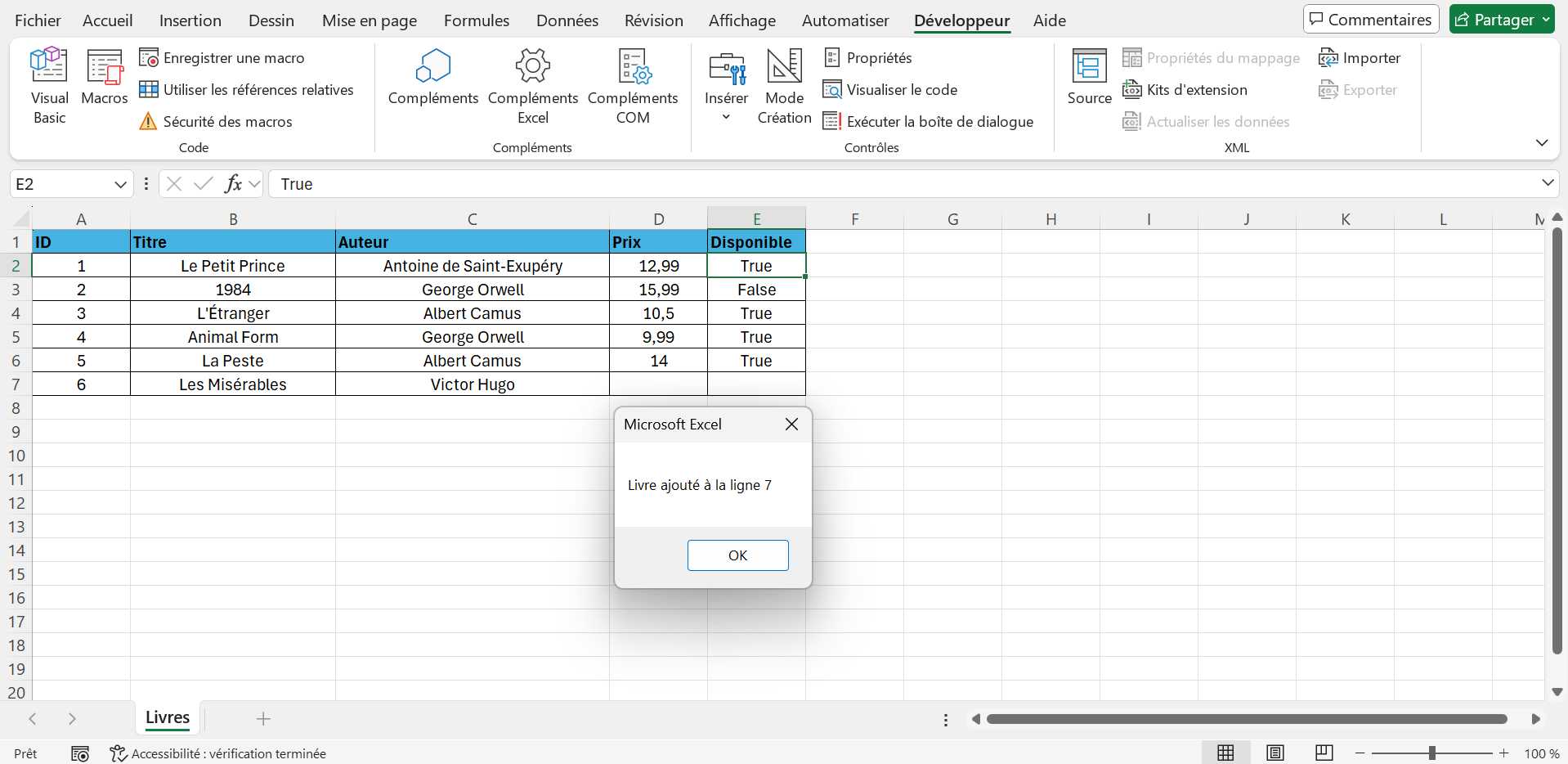
MsgBox "Book added to line " & lastRow
End Sub
Dim ws As Worksheet
Dim lastRow As Long
Dim i As Integer
Set ws = ThisWorkbook.Sheets("Books")
lastRow = ws.Cells(ws.Rows.Count, 1). End(xlUp). Row + 1
' Validate the entries
For Each ctrl In Me.Controls
If Left(ctrl.Name, 8) = "txtChamp" Then
If ctrl.Text = "" Then
lErreur.Caption = "All fields must be filled"
Exit Sub
End If
End If
Next ctrl
' Add the data
ws.Cells(lastRow, 1). Value = lastRow - 1
For i = 1 To CInt(cboChamps.Value)
ws.Cells(lastRow, i + 1). Value = Me.Controls("txtChamp" & i). Text
Next i
lblErreur.Caption = ""
Unload Me
MsgBox "Book added to line " & lastRow
End Sub
???? Expected outcome:
Macro to display the form:
Sub AfficherFormulaireLivre()
UserForm1.Show
End Sub
Sub AfficherFormulaireLivre()
UserForm1.Show
End Sub
Test:
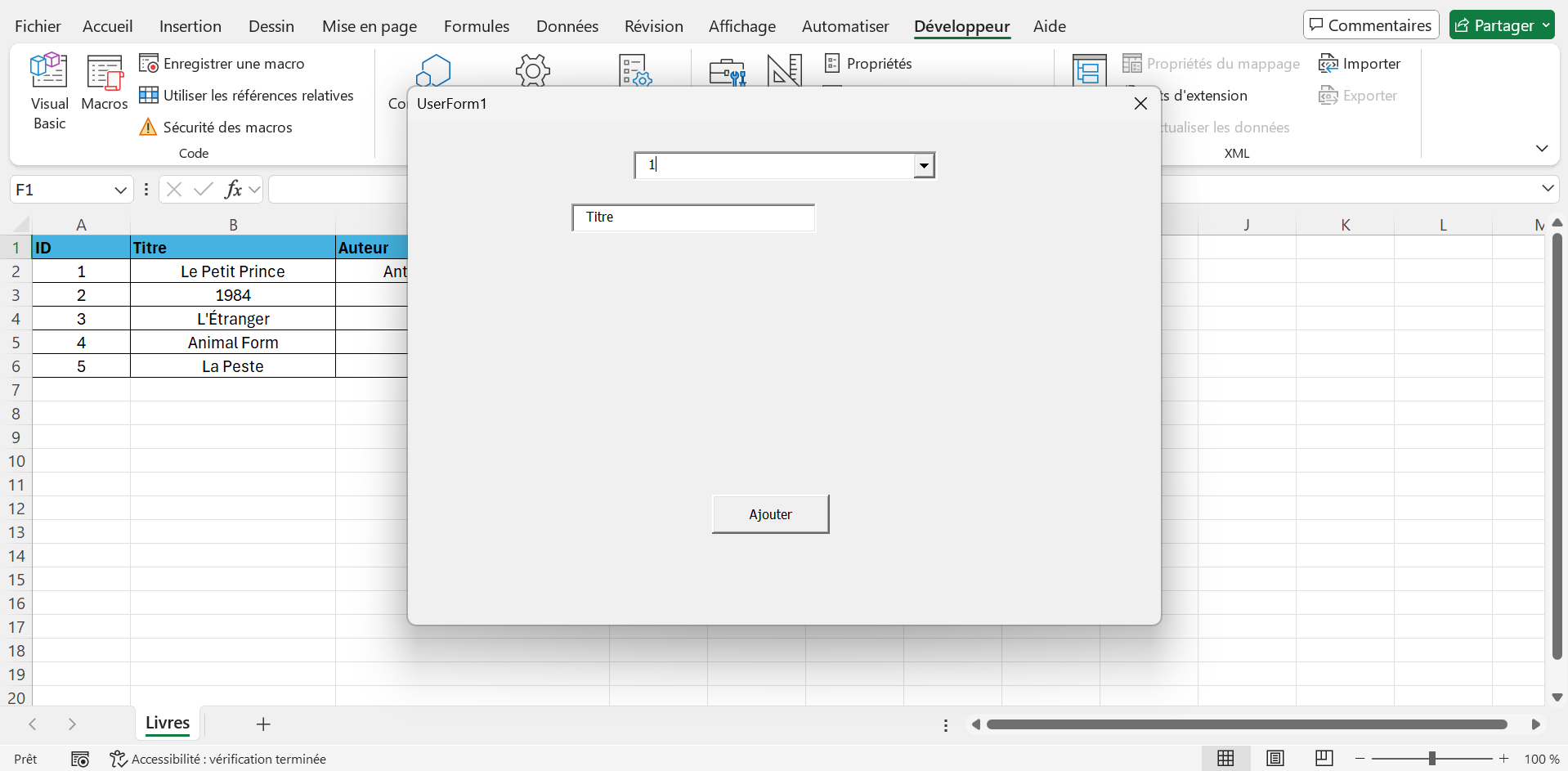
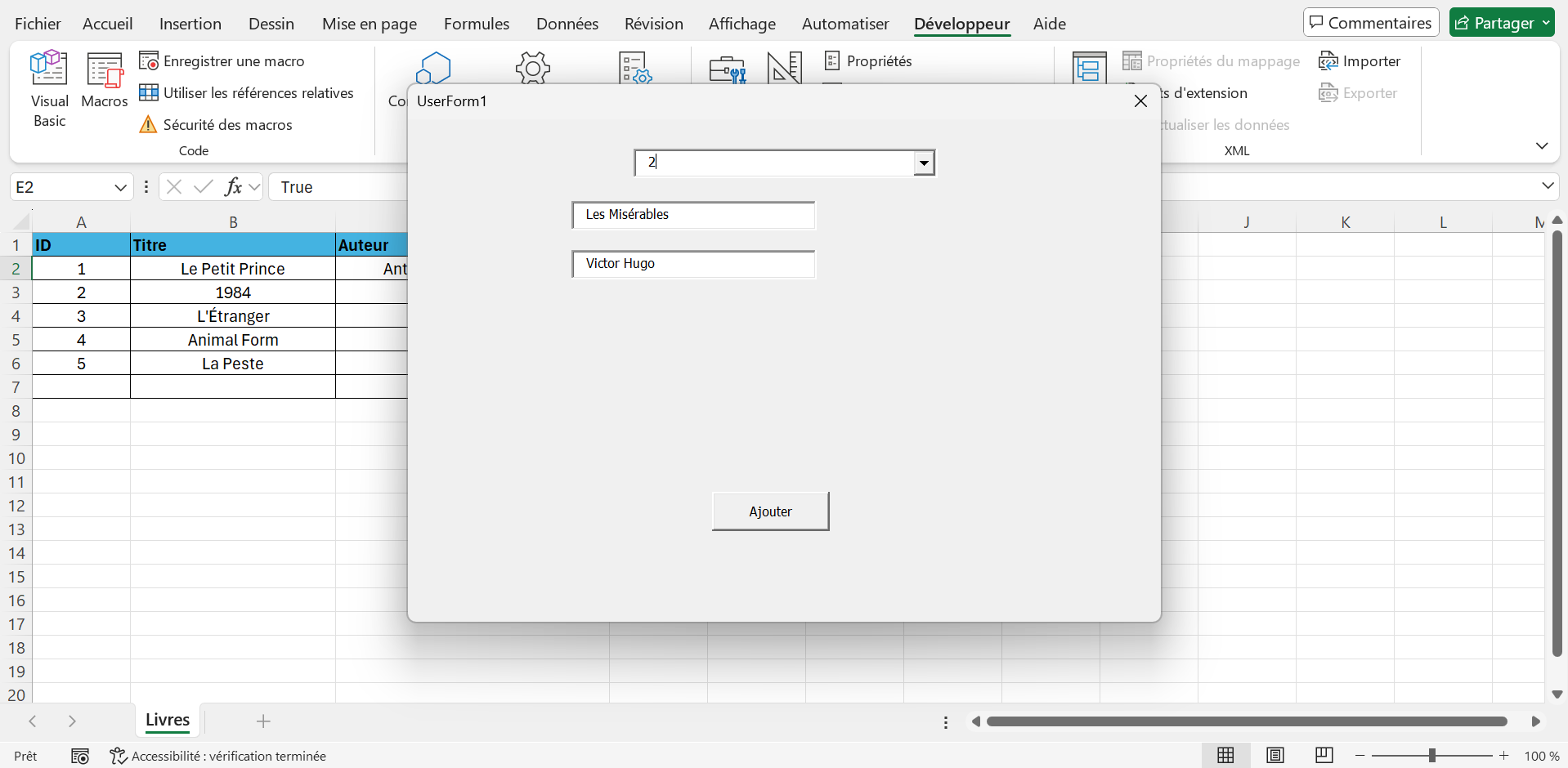
- Test by selecting 2 fields in
cboChamps, entering a title and an author, then clicking "Add". - Check that:
- The TextBoxes are displayed dynamically based on
cboChamps. - The data is added in the "Books" sheet.
- An error message appears if a field is empty.
- The TextBoxes are displayed dynamically based on
???? Expected outcome:
1. Theory - File Management and Connection with Other Applications
File Management with FileSystemObject
- Definition : FileSystemObject is an object of the Scripting library for manipulating files and folders (read, write, create, delete).
- Activation : Add a reference to Microsoft Scripting Runtime in the VBA editor (Tools > References) or use
CreateObject("Scripting.FileSystemObject"). - Key Methods :
OpenTextFile: Opens a file for reading or writing.CreateTextFile: Create a new file.FileExists,FolderExists: Checks the existence of a file or folder.
- Example : Read a CSV file, write a report in a text file.
Login with Microsoft Word
- Interaction : Use
CreateObject("Word.Application")orGetObjectto control Word from VBA. - Key Objects :
Word.Application: Represents the Word application.Documents.Add: Create a new document.Range: Manipulates text in a document.
- Functions : Add text, format (bold, tables), save the document.
Error handling
- Use
On Error Resume Nextto handle file or Word access errors. - Check the existence of files/folders before any operation.
- Close files and exit Word cleanly to avoid residual processes.
Good practices
- Use relative paths (e.g.,
ThisWorkbook.Path) for better portability. - Validate the imported data to avoid errors (e.g., check digital formats).
- Document interactions with Word to clarify formatting.
- Test macros on temporary files/folders to avoid data loss.
2. Demonstrations with an example
Example 1: Import Books from CSV File
Preparation:
- Create a new Excel workbook and save it as
Librairie_lecon3_Intermediaire.xlsm. - Create a "Books" sheet with A1:E1: "ID", "Title", "Author", "Price", "Available".
- Create a CSV file named
Livres.csvin the same folder as the workbook with the following content:
6,Harry Potter,J.K. Rowling,19.99,True
7,The Lord of the Rings,J.R.R. Tolkien,24.99,True
6,Harry Potter,J.K. Rowling,19.99,True
7,The Lord of the Rings,J.R.R. Tolkien,24.99,True
Code to import the CSV:
Sub ImporterLivresCSV()
Dim fso As Object, file As Object
Dim ws As Worksheet
Dim line As String, data() As String
Dim lastRow As Long
Set ws = ThisWorkbook.Sheets("Books")
Set fso = CreateObject("Script.FileSystemObject")
' Check existence of file
Si Pas fso.FileExists(ThisWorkbook.Path & " Livres.csv") Then
&MsgBox "Fichier Livres.csv not found"
"Exit Sub
End If
Set file = fso.OpenTextFile(ThisWorkbook.Path & " Livres.csv", 1)
lastRow = ws. Cells(ws.Rows.Count, 1). End(xlUp). Row + 1
' Ignore the header line
Si Not file.AtEndOfStream Then
&line = file.ReadLine
End If
' Read and import data
While Not file.AtEndOfStream
&line = file.ReadLine
&data = Split(line, ",")
&ws. Cells(lastRow, 1). Value = data(0)
&ws. Cells(lastRow, 2). Value = data(1)
&ws. Cells(lastRow, 3). Value = data(2)
"If IsNumeric(data(3)) Then
&ws. Cells(lastRow, 4). Value = CDbl(data(3))
End Si
&ws. Cells(lastRow, 5). Value = CBool(data(4))
&lastRow = lastRow + 1
Wend
file. Close
&ws. Columns("A:E"). AutoFit
MsgBox "Books imported in sheet Books"
Fin Sub
Sub ImporterLivresCSV()
Dim fso As Object, file As Object
Dim ws As Worksheet
Dim line As String, data() As String
Dim lastRow As Long
Set ws = ThisWorkbook.Sheets("Books")
Set fso = CreateObject("Scripting.FileSystemObject")
' Check the existence of the file
If it is not fso.FileExists(ThisWorkbook.Path & " Livres.csv") Then
MsgBox "File Livres.csv not found"
Exit Sub
End If
Set file = fso.OpenTextFile(ThisWorkbook.Path & " Livres.csv", 1)
lastRow = ws.Cells(ws.Rows.Count, 1). End(xlUp). Row + 1
' Ignore the header line
Si Not file.AtEndOfStream Then
line = file.ReadLine
End If
' Read and import the data
Although not file.AtEndOfStream
line = file.ReadLine
data = Split(line, ",")
ws.Cells(lastRow, 1). Value = data(0)
ws.Cells(lastRow, 2). Value = data(1)
ws.Cells(lastRow, 3). Value = data(2)
If IsNumeric(data(3)) Then
ws.Cells(lastRow, 4). Value = CDbl(data(3))
End If
ws.Cells(lastRow, 5). Value = CBool(data(4))
lastRow = lastRow + 1
Wend
file. Close
ws.Columns("A:E"). AutoFit
MsgBox "Books imported in the sheet Books"
Fin Sub
Test:
- Run the macro and verify that:
- The books of the CSV are added to the "Books" sheet starting from the last line.
- The columns are adjusted automatically.
- A message confirms the import.
???? Expected outcome:


1. Theory - Code Optimization and Performance Management
VBA Code Optimization
- Reduce interactions with leaves :
- Each access to
RangeorCellsis costly in execution time. - Solution : Load the data into a VBA array with
Range.Value, process it, then write the results in one operation.
- Each access to
- Disable updates :
Application.ScreenUpdating = False: Disables screen refresh.Application.Calculation = xlCalculationManual: Disables automatic formula calculation.- Restore settings to the end with
Application.ScreenUpdating = TrueandApplication.Calculation = xlCalculationAutomatic.
- Using effective structures :
- Prefer
For Eachto browse collections (e.g. Worksheets). - Use
Dictionaryfor quick searches instead of nested loops.
- Prefer
Debugging and Profiling
- Debugging tools :
- Breakpoints : Click in the margin of the VBA editor to stop execution at one line.
- Immediate Window : Use
Debug.Printto display values during runtime (Ctrl+G to open). - Local Variables Window : Displays the values of running variables.
- Profiling :
- Measure run time with
Timerto compare performance. - Identify slow loops or repeated accesses to sheets.
- Measure run time with
- Error handling : Use
On Errorto capture errors andDebug.Printto log issues.
Good practices
- Always use
Option Explicitto avoid variable errors. - Minimize nested loops using structures like
Dictionary. - Document optimizations with comments to facilitate maintenance.
- Test on copies of workbooks to avoid data loss.
2. Demonstrations with an example
Example 1: Optimization of a Loop with an Array
Preparation:
- Create a new Excel workbook and save it as
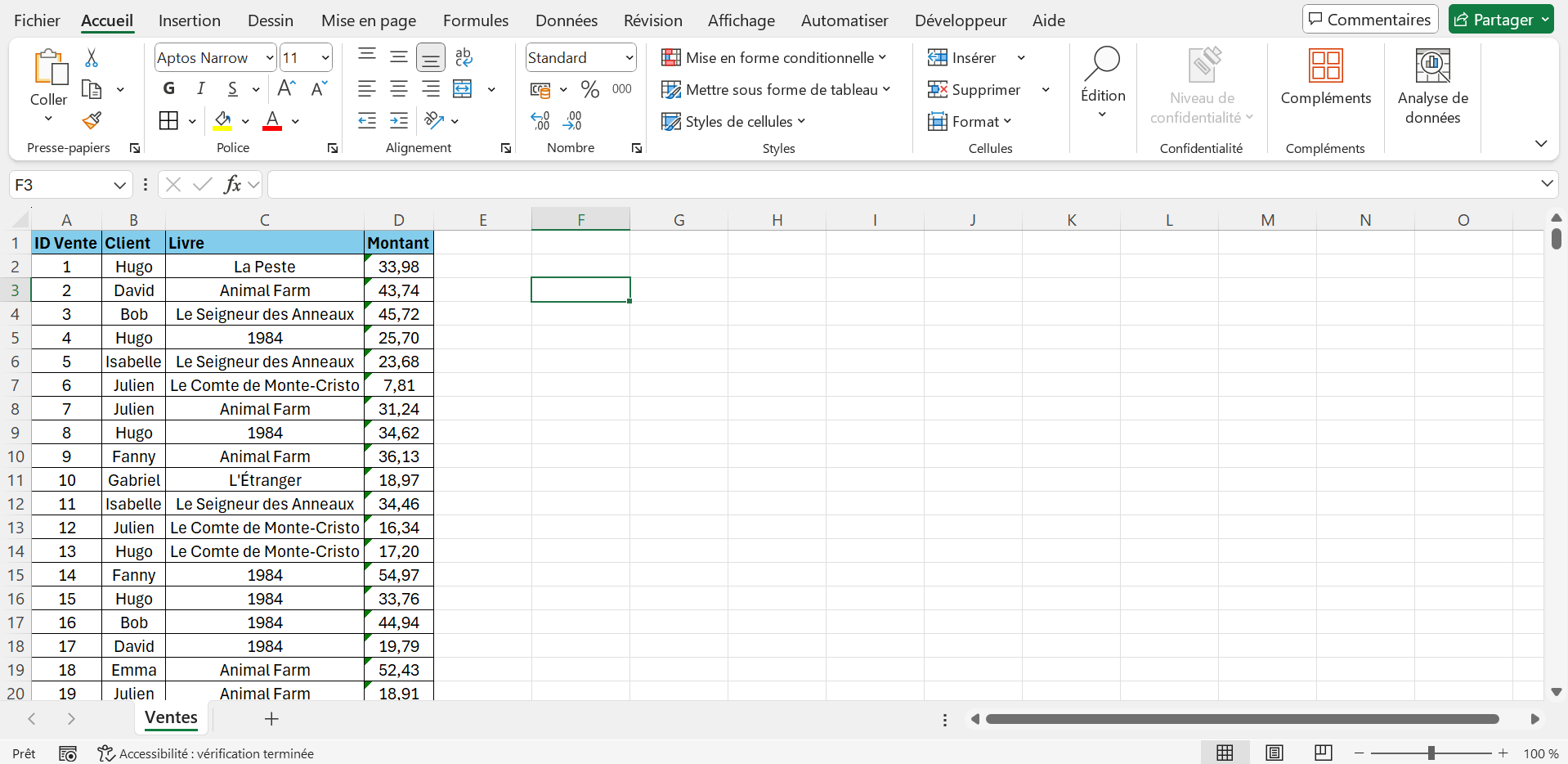
Librairie_Semaine4_Intermediaire.xlsm. - In the "Sales" sheet, enter the headers in A1:D1: "Sales ID", "Customer", "Book", "Amount".
- Add data in A2:D6 (or generate 1000 rows for performance testing):
- 1, "Alice", "The Little Prince", 12.99
- 2, "Bob," "The Stranger," 10.50
- 3, "Charlie," "Animal Farm," 9.99
- 4, "David", "The Plague", 14.00
- 5, "Emma", "Harry Potter", 19.99
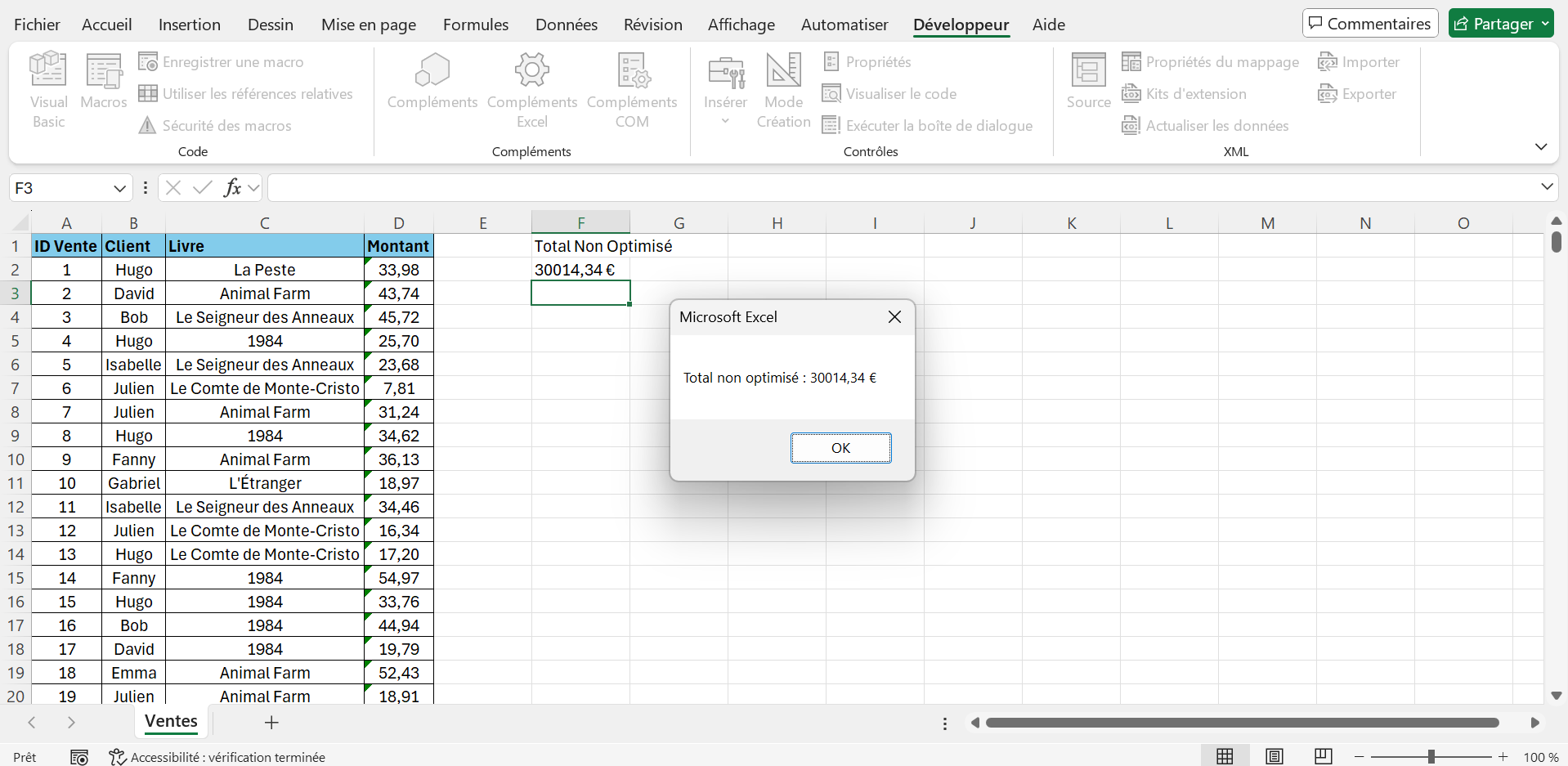
???? Expected outcome:
Unoptimized version:
Sub CalculerTotalVentesNonOptimise()
Dim ws As Worksheet
Dim lastRow As Long, i As Long
Dim total As Double
Set ws = ThisWorkbook.Sheets("Sales")
lastRow = ws. Cells(ws.Rows.Count, 1). End(xlUp). Row
&total = 0
For i = 2 To lastRow
&total = total + ws. Cells(i, 4). Value
Next i
ws. Cells(1, 6). Value = "Total Non Optimized"
ws. Cells(2, 6). Value = Format(total, "0.00 €")
MsgBox "Total not optimized: " & Format(total, "0.00 €")
End Sub
Sub CalculerTotalVentesNonOptimise()
Dim ws As Worksheet
Dim lastRow As Long, i As Long
Total Dim As Double
Set ws = ThisWorkbook.Sheets("Sales")
lastRow = ws.Cells(ws.Rows.Count, 1). End(xlUp). Row
total = 0
For i = 2 To lastRow
total = total + ws.Cells(i, 4). Value
Next i
ws.Cells(1, 6). Value = "Total Not Optimized"
ws.Cells(2, 6). Value = Format(total, "0.00 €")
MsgBox "Total not optimized: " & Format(total, "0.00 €")
End Sub
Optimized version:
Application.ScreenUpdating = False
Dim ws As Worksheet
Dim lastRow As Long, i As Long
"nbsp;"nbsp;"nbsp;Dim data As Variant, total As Double
Set ws = ThisWorkbook.Sheets("Sales")
lastRow = ws. Cells(ws.Rows.Count, 1). End(xlUp). Row
' Load data into a table
data = ws. Range("D2:D" & lastRow). Value
&total = 0
' Process the array in memory
For i = 1 To lastRow - 1
If IsNumeric(data(i, 1)) Then
&total = total + data(i, 1)
End If
Next i
' Write the result in one operation
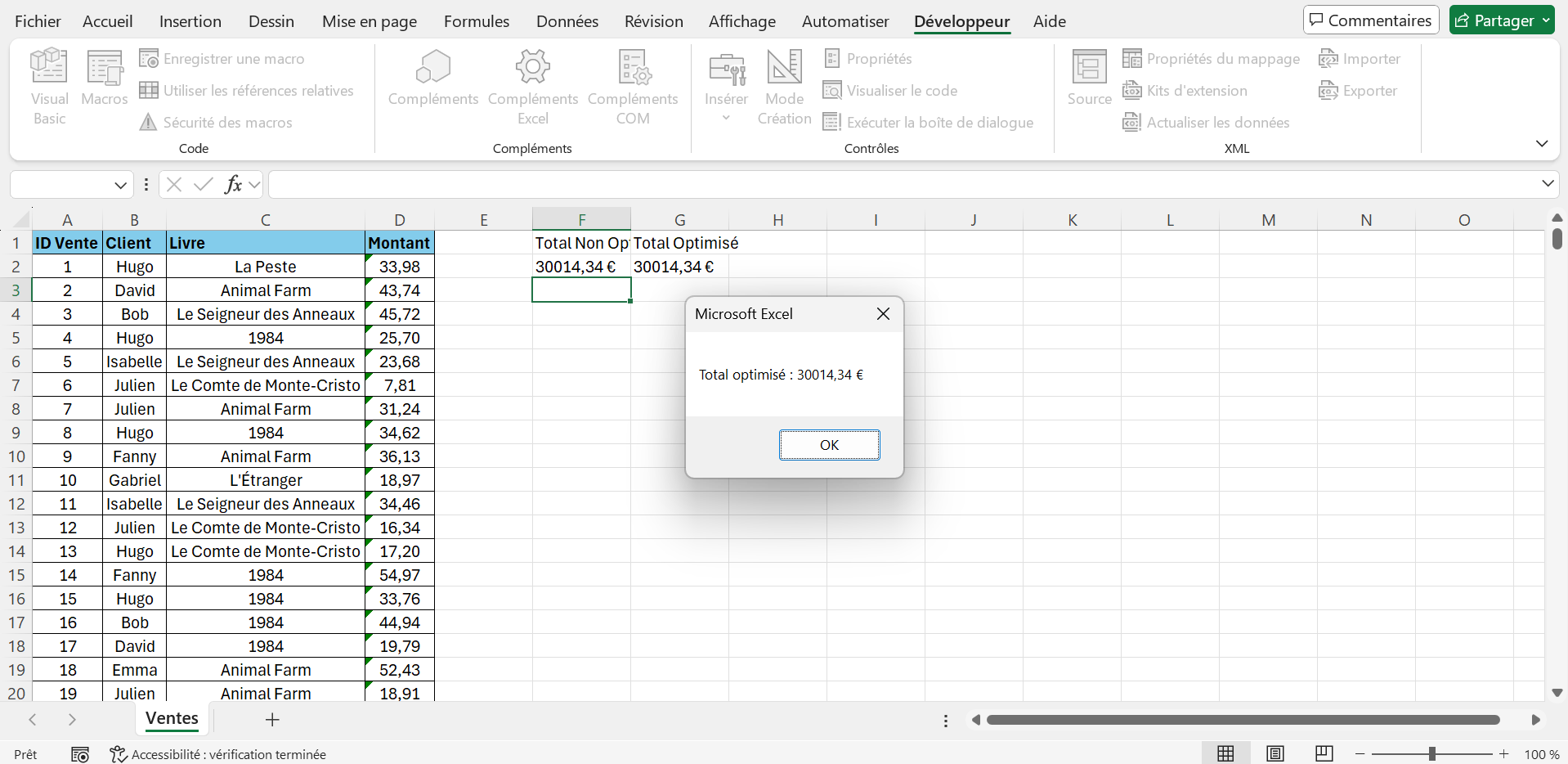
ws. Cells(1, 7). Value = "Total Optimized"
ws. Cells(2, 7). Value = Format(total, "0.00 €")
Application.ScreenUpdating = True
MsgBox "Total optimized: " & Format(total, "0.00 €")
End Sub
Application.ScreenUpdating = False
Dim ws As Worksheet
Dim lastRow As Long, i As Long
Dim data As Variant, total As Double
Set ws = ThisWorkbook.Sheets("Sales")
lastRow = ws.Cells(ws.Rows.Count, 1). End(xlUp). Row
' Load the data into a table
data = ws.Range("D2:D" & lastRow). Value
total = 0
' Process the array in memory
For i = 1 To lastRow - 1
If IsNumeric(data(i, 1)) Then
total = total + data(i, 1)
End If
Next i
' Write the result in a single operation
ws.Cells(1, 7). Value = "Total Optimized"
ws.Cells(2, 7). Value = Format(total, "0.00 €")
Application.ScreenUpdating = True
MsgBox "Total optimized: " & Format(total, "0.00 €")
End Sub
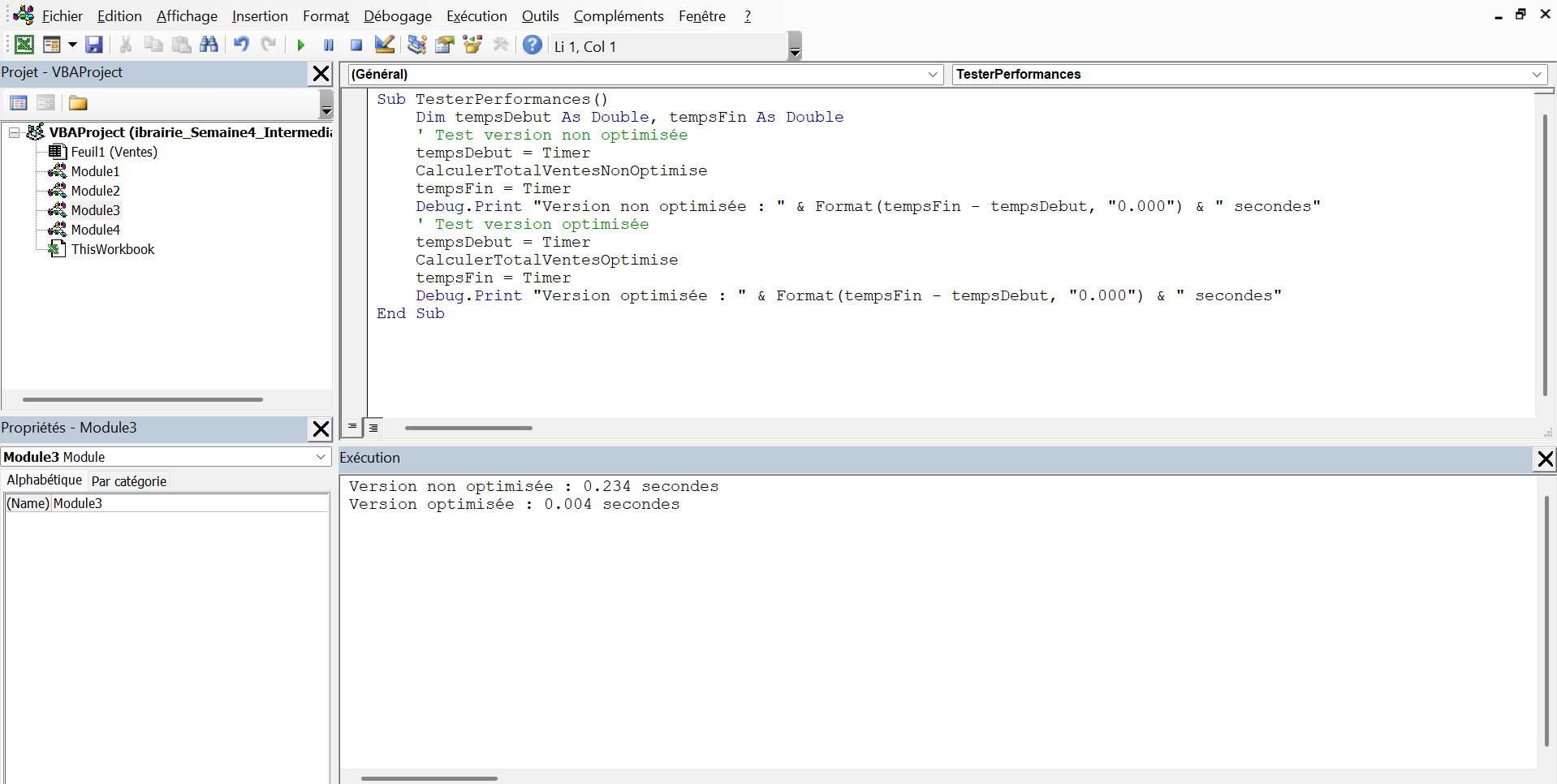
Performance test:
Dim tempsDebut As Double, tempsFin As Double
'' Test version not optimized
tempsDebut = Timer
CalculerTotalVentesNonOptimise
tempsFin = Timer
Debug.Print "Version not optimized: " & Format(tempsFin - tempsDebut, "0.000") & " seconds"
'' Test optimized version
tempsDebut = Timer
CalculerTotalVentesOptimise
tempsFin = Timer
Debug.Print "Optimized version: " & Format(tempsFin - tempsDebut, "0.000") & " seconds"
End Sub
Dim tempsDebut As Double, tempsFin As Double
' Test version not optimized
tempsDebut = Timer
CalculerTotalVentesNonOptimise
tempsFin = Timer
Debug.Print "Version not optimized: " & Format(tempsFin - tempsDebut, "0.000") & " seconds
' Optimized version test
tempsDebut = Timer
CalculerTotalVentesOptimise
tempsFin = Timer
Debug.Print "Optimized version: " & Format(tempsFin - tempsDebut, "0.000") & " seconds
End Sub
Test:
- Run the two macros and compare the execution time (most notable with 1000+ lines).
- Check that:
- The total (e.g. €67.47) is displayed in F2 (not optimized) and G2 (optimized).
- The optimized version is faster thanks to the use of the table and
ScreenUpdating. - The execution times are displayed in the Immediate window (Ctrl+G).
???? Expected outcome: